Fly Veterans Operating Manual
Fly Veterans is the operations platform built for Honor Flight® hubs. It takes a hub from the moment a Veteran applies to the moment the bus pulls away — online applications, a fair and transparent waiting line, complete Veteran and Guardian records, flight planning with bus and room assignments, a minute-by-minute itinerary, and email and text messaging that reaches everyone who needs to know.
This manual walks through everything the hub does today, in the order a hub uses it. Every screenshot was taken in the Demo Honor Flight hub, a fictional organization with fictional people, so nothing here shows a real Veteran.
Honor Flight® is a registered trademark of Honor Flight, Inc. Fly Veterans is an independent platform that serves Honor Flight® organizations; it is not a product of Honor Flight, Inc.
Who this manual is for
- Hub directors and coordinators who run applications, the waiting line, and flights. Read it top to bottom once, then keep it open on flight-planning days.
- Volunteer leads and bus captains who need the Passengers, Bus Assignments, and Itinerary sections.
- Communications volunteers who send email and text messages. Start at Email and Text messaging.
- Hubs evaluating Fly Veterans. This page is a faithful tour of what the product does for a hub right now. If it is not on this page, the hub does not do it yet. Request a demo to see it with your own data.
If you only need the meaning of a word — The Line, Guardian, Gather Time — the Glossary is shorter.
How a hub uses Fly Veterans
Every hub follows the same loop, and the sidebar is laid out in that order:
- A Veteran, Guardian, or Volunteer fills in the application form on the hub's own website. The record appears in the hub within seconds.
- Veterans wait in The Line, ordered by the national priority rules and application date, so "who is next" is never a guess.
- A coordinator creates a Flight and assigns Veterans, their Guardians, and the day's Volunteers to it.
- Guardian training invitations go out; the hub watches who has finished.
- The planning workspace fills the buses (and hotel rooms on an overnight trip), builds the itinerary, and records reservations.
- Scheduled messages and ad-hoc email and SMS keep everyone informed, with a delivery ledger for every send.
- On the day, the manifest export and the printable itinerary go with the bus leaders.
Getting started
Your hub address
Each hub has its own private address on the Fly Veterans domain, made from the hub's short code:
https://<yourhub>.flyveterans.org
The demo hub used throughout this manual lives at demo.flyveterans.org.
Bookmark your hub's address; everything in this manual after the sign-in
section happens there.
Signing in
Fly Veterans uses passwordless sign-in. There is no password to forget, reset, or write on a sticky note.
Choose Continue with Email and enter the email address your hub administrator invited. (Google, GitHub, and Apple sign-in are also offered where your organization allows them.)
Choose Send Magic Link, then open the email titled Sign in to Fly Veterans and follow its link. You land back in your hub, signed in.
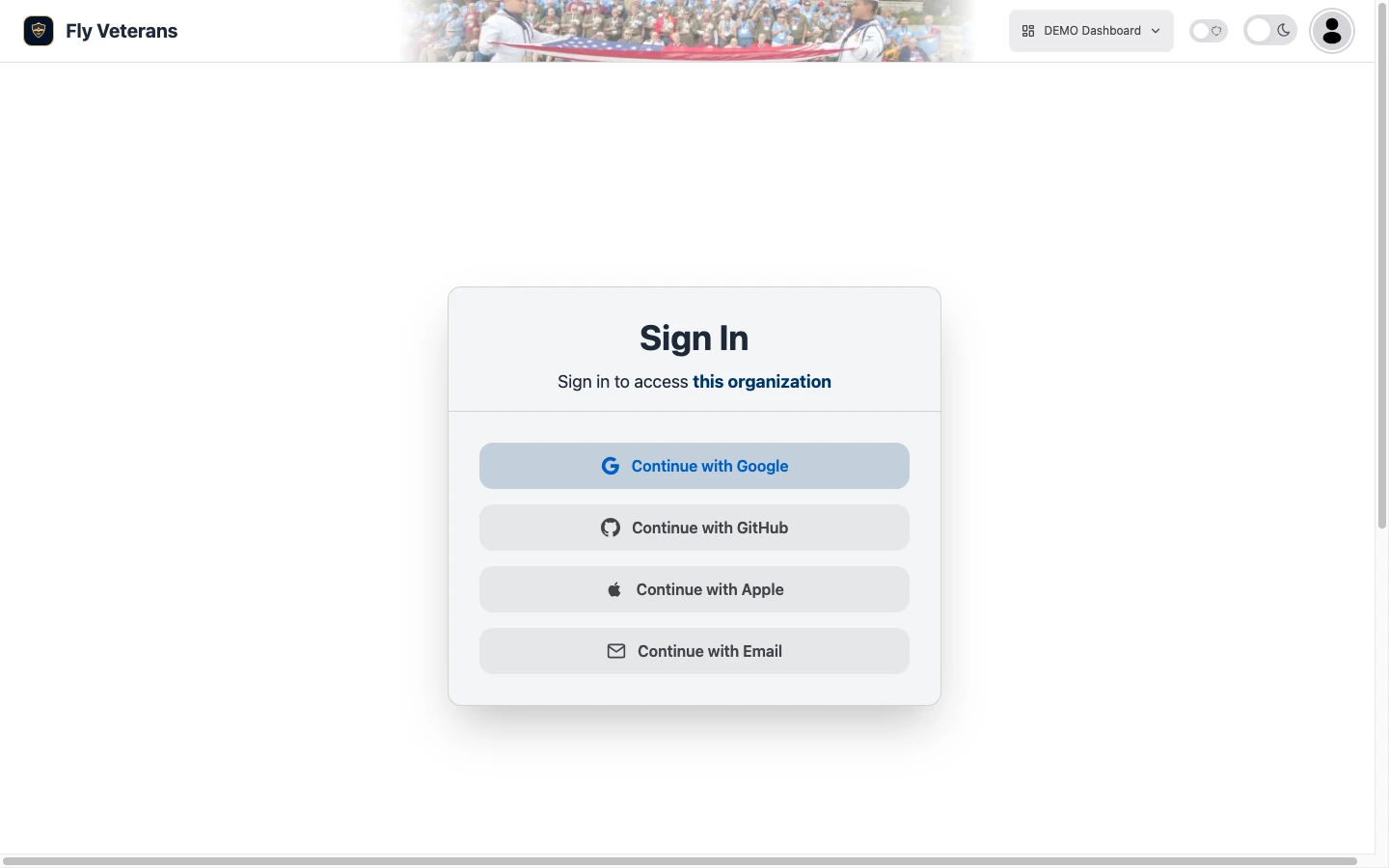
Magic links are single-use and expire. If a link has already been used or has aged out, request a new one from the sign-in page — nothing else is needed.
Roles: who can do what
Access is granted per hub, per person, by the hub's own administrators under Settings → Team Members. Being a member is not enough by itself; a member needs at least one role before the hub opens for them.
| Role | What it unlocks |
|---|---|
| Admin | Everything: people, flights, settings, team management, and sending communications. |
| User | Day-to-day work on people and flights. |
| Moderator | The same as User, with content moderation for hub-authored pages. |
| The Line viewer | The Line, including the waiting order and the burndown projection. Without it, The Line is hidden from the sidebar. |
| Communications sender | Creating and editing Email Lists and SMS Lists and sending to them. Members without it can still read send history. |
Finding your way around
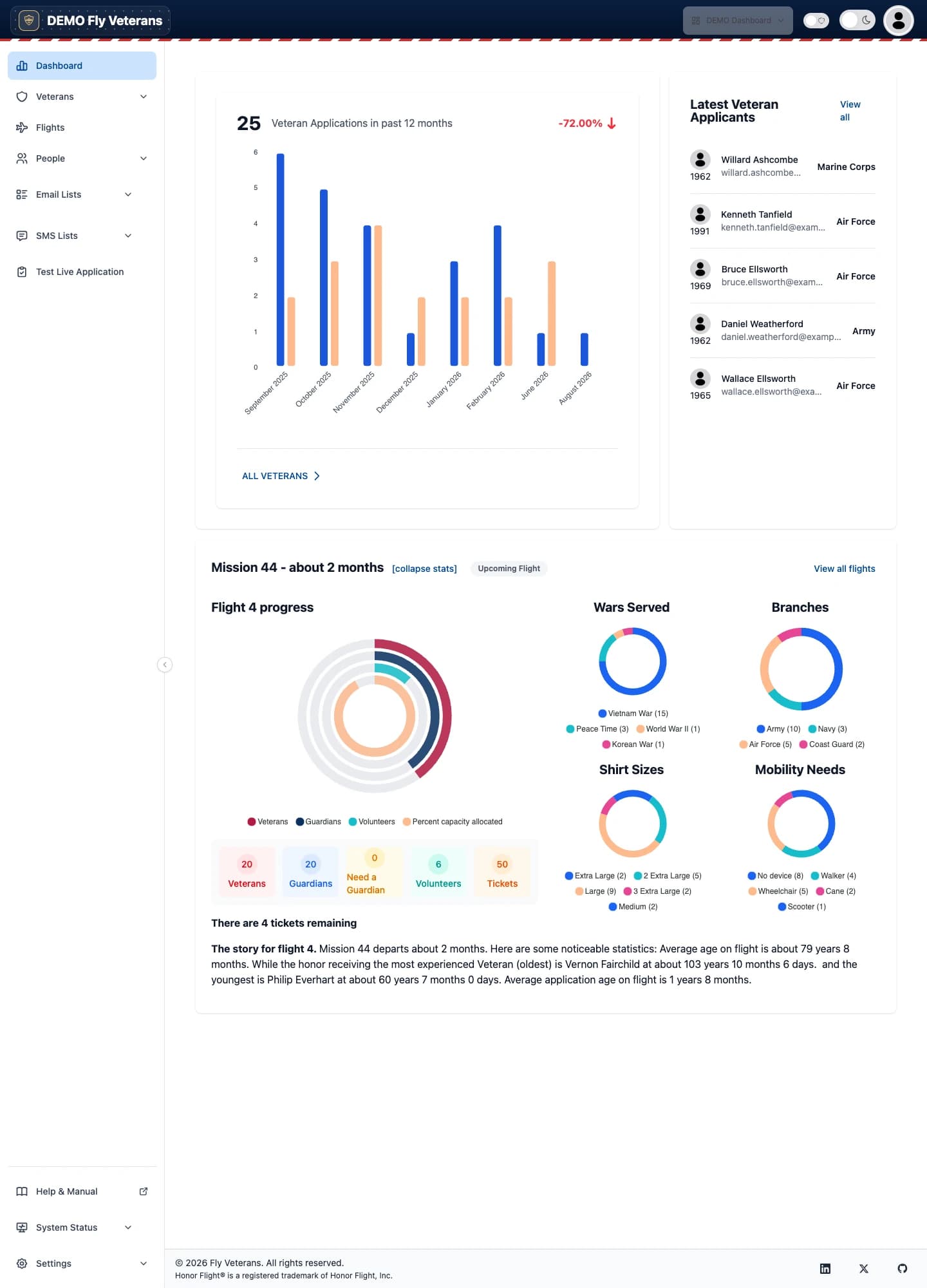
- Sidebar (left). Dashboard, Veterans, Flights, People, Email Lists, SMS Lists, and Test Live Application; then Help & Manual, System Status, and Settings pinned to the bottom. Collapse it with the small arrow on its edge when you need the full width for a roster.
- Top bar. The dashboard button (a switcher for people who belong to more than one hub), the light/dark theme switch, and your account menu.
- Dashboard. Applications per month for the past year with the year-over-year change, the five most recent Veteran applicants, and the statistics card for the upcoming flight.
Applications
Applications are how people enter the hub. Fly Veterans does not send Veterans to a Fly Veterans website to apply; the form lives on your website, in your colors, and writes straight into your hub.
The application form on your website
Open Test Live Application in the sidebar. The page is both the configurator and a live preview of the form your visitors see.
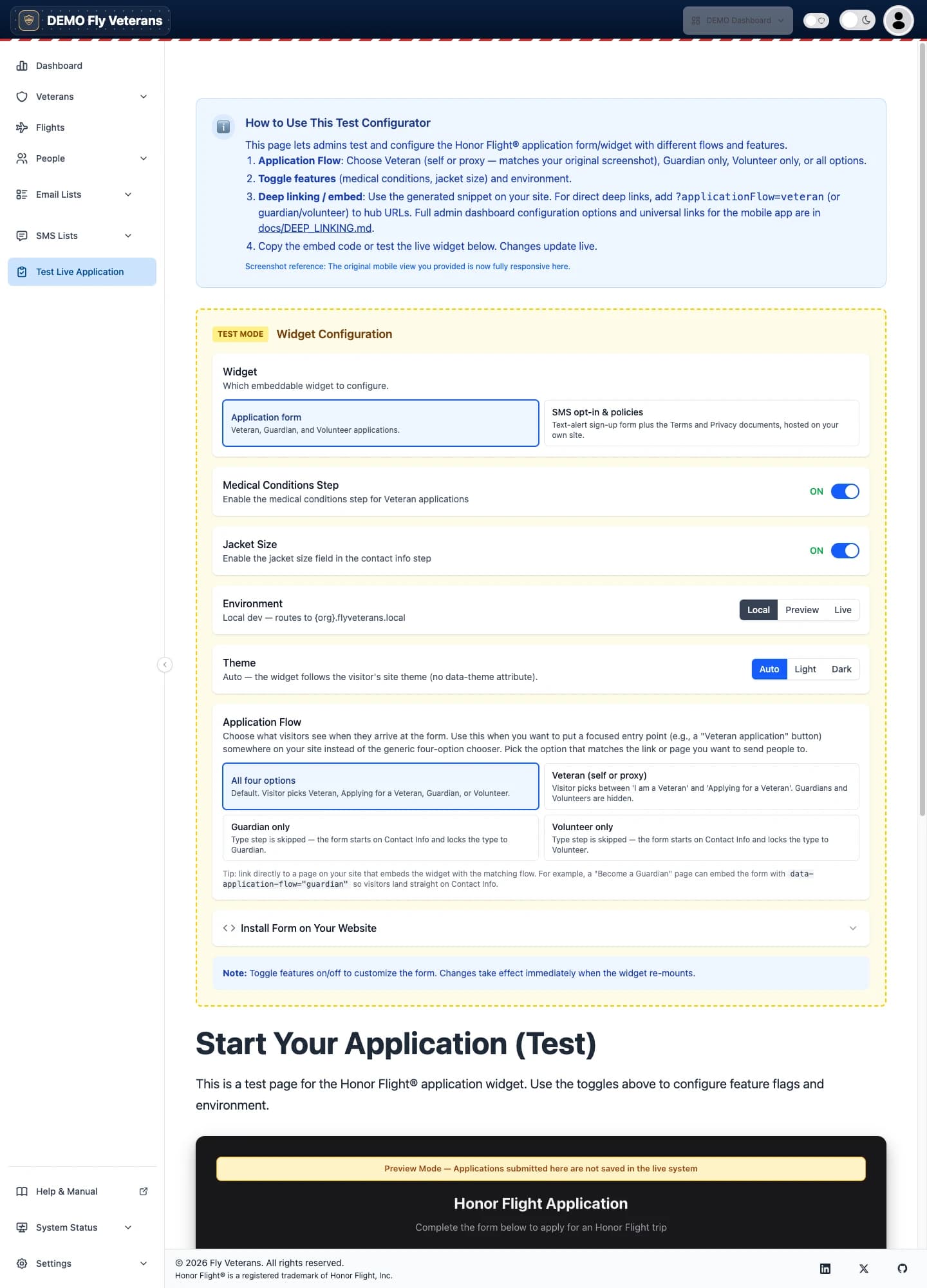
- Widget. Choose the Application form (Veteran, Guardian, and Volunteer applications) or the SMS opt-in & policies widget (the text-alert sign-up form plus the Terms and Privacy pages carriers require — see Text messaging).
- Application flow. Offer all three application types, or lock the embed to Veterans only, Guardians only, or Volunteers only — useful for a "Become a Guardian" page.
- Feature toggles. Turn the medical-conditions step and the jacket-size question on or off to match what your hub collects.
- Theme. Auto (follows the visitor's device), light, or dark.
- Install on your website. Copy the generated snippet and paste it into any page of your site. Changes you make here update the snippet live.
- Deep links. Add
?applicationFlow=veteran(orguardian,volunteer) to a page that carries the widget to open that flow directly — handy for a QR code on a flyer.
The widget only accepts submissions from the website addresses listed under Widget Allowed Origins on this page. If a form on a new domain is not submitting, add that domain here first.
What the applicant sees
The form is a short, guided sequence: who is applying, contact details, service history (for Veterans), medical conditions (when enabled), and an alternate contact, followed by a confirmation screen that shows your hub's own thank-you message. Fields are masked and validated as people type, and a hidden honeypot field discards bot submissions without ever bothering a real applicant.
What happens next
Within seconds of a submission:
- The person appears under Veterans, People → Guardians, or People → Volunteers with an Applied date and the Applied online flag set.
- New Veterans show on the dashboard's Latest Veteran Applicants card and are counted in the monthly applications chart.
- Veterans take their place in The Line automatically.
Veterans, Guardians and Volunteers
Every person the hub knows about is a person record of one of three types. Veterans have their own sidebar entry; Guardians and Volunteers live under People. All three share the same roster and the same record layout.
The roster
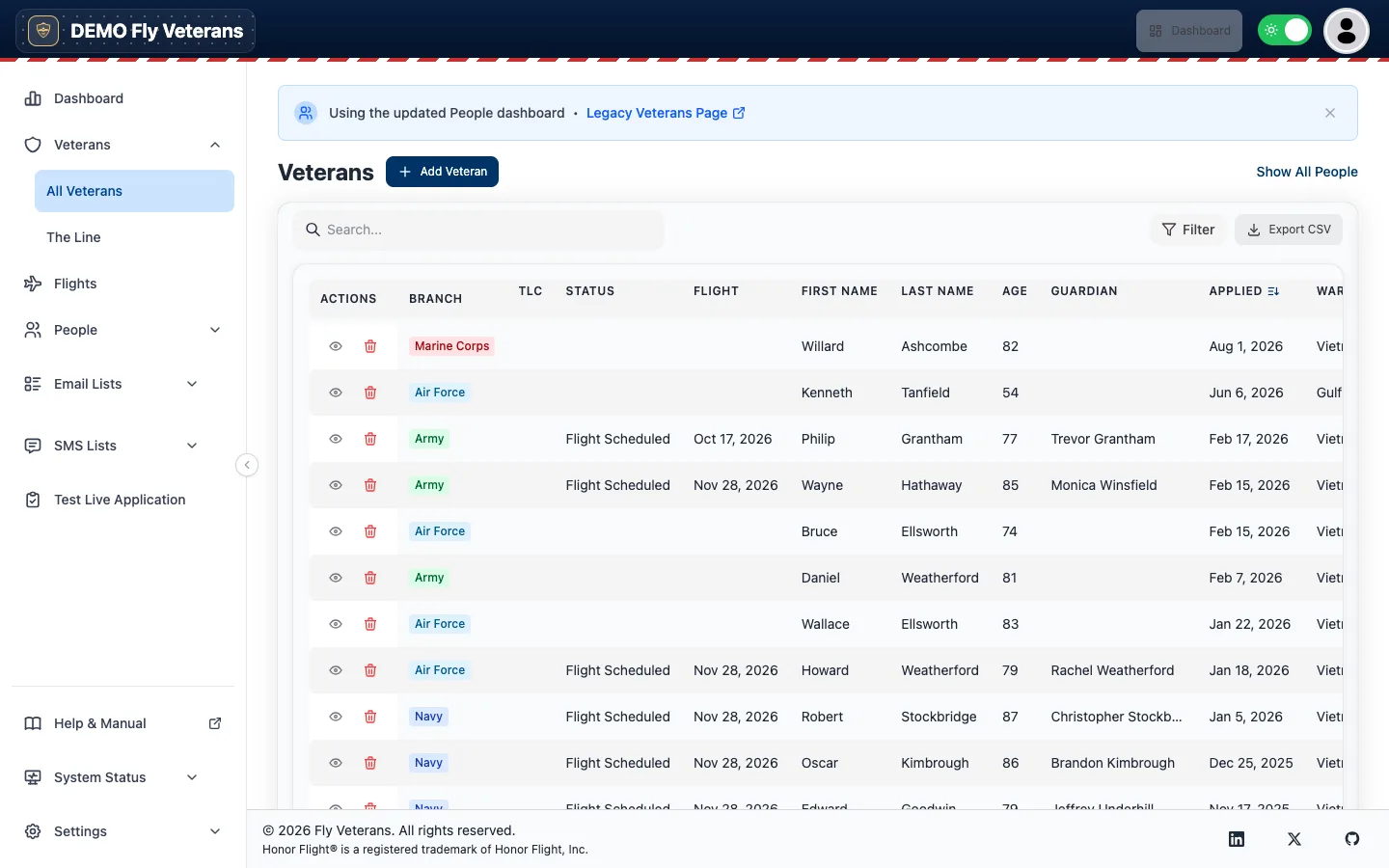
- Search by name, email, or phone.
- Sort by clicking a column heading; the arrow shows the current order.
- Filter opens a filter builder: combine conditions such as status, war era, branch, flight, mobility device, and TLC. Save a filter you use often and it becomes a named view you can return to with one click.
- Columns. Open the column picker to show or hide columns — TLC, Status, Flight, Age, War, Branch, Awards, Mobility, Medical conditions, Medications, Allergies, Roles, Shirt and Jacket size, Release, Applied online, address, and more. Your choices are remembered per person, per roster.
- Export CSV downloads the current rows and columns. Cells that start with a formula character are escaped, so a spreadsheet never executes anything from an application.
- Show All People switches to the combined roster of every type.
The eye icon opens a record. The trash icon removes a person from the hub after a confirmation; the record is retired rather than erased.
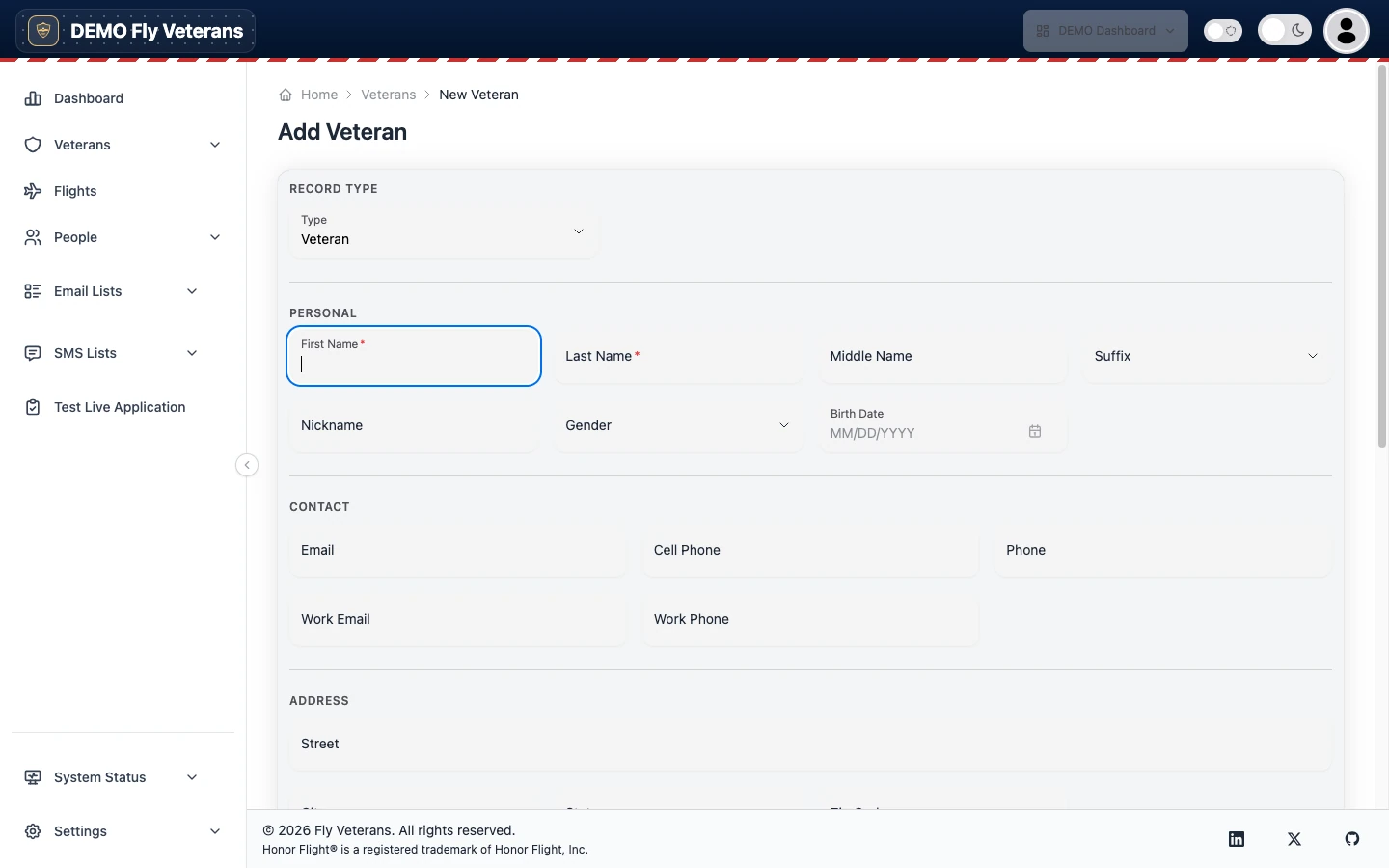
Adding a person by hand
Most people arrive through the application form, but a coordinator can add anyone directly. Choose Add Veteran (or Add Guardian / Add Volunteer on those rosters), fill in the essentials, and save; you land on the new record to complete the rest.
The person record
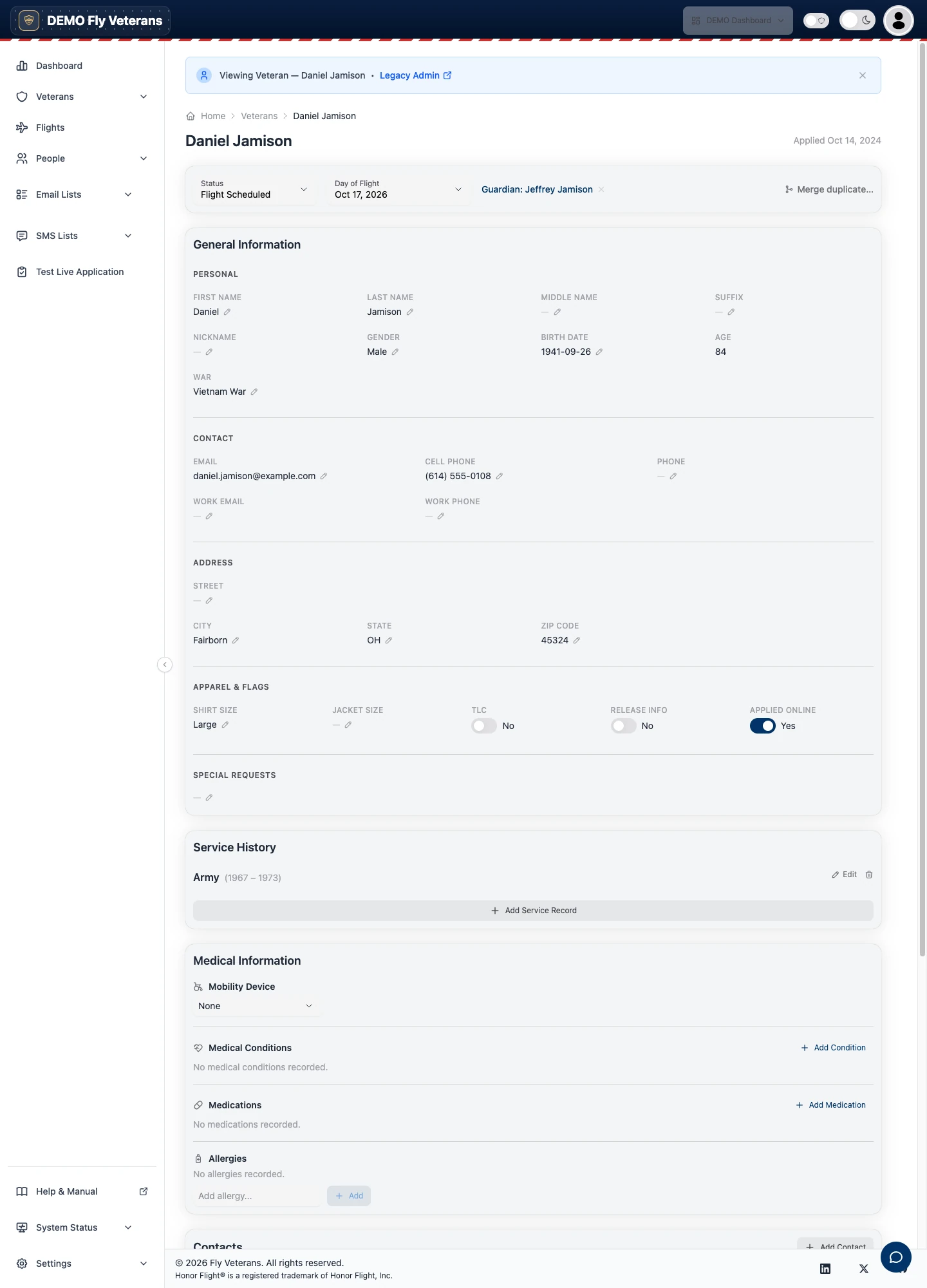
The header carries the decisions that change most often, and each saves the moment you change it:
- Status — Flight Scheduled, Completed, and the other statuses your hub defines (the list is yours to manage under Reference Data).
- Day of Flight — assign the Veteran to an upcoming flight, or clear it to return them to The Line.
- Guardian — the paired Guardian, with a one-click unlink.
- Merge duplicate… — see Merging duplicates.
Below the header, the record is organized in sections:
- General Information. Name, nickname, gender, birth date and age, war era, contact details, address, shirt and jacket size, and the flags TLC (needs extra care on the day), Release info, and Applied online, plus special requests.
- Service History. One entry per period of service: branch, dates, rank type and rank, and awards. The war era on the record is derived from these dates, so keep them accurate — they drive The Line.
- Medical Information. Mobility device (None, Cane, Walker, Wheelchair, Scooter…), medical conditions from your hub's list, medications with dose, route, and frequency, and allergies. This section surfaces on the manifest and the passengers list so medical volunteers see it without opening records.
- Contacts. Emergency and family contacts with a relationship and category.
- Travel Companions. Buddy Up links two Veterans who want to travel together, so planners see the pair wherever either one appears.
- Assigned Veterans (on a Guardian record). The Veterans this Guardian is paired with — up to three per flight.
- Attachments. Upload documents up to 25 MB — a DD-214, a signed release, a photo — and download or delete them later.
- Comments. A running log of notes with the author and time. Pin the one everyone should read first.
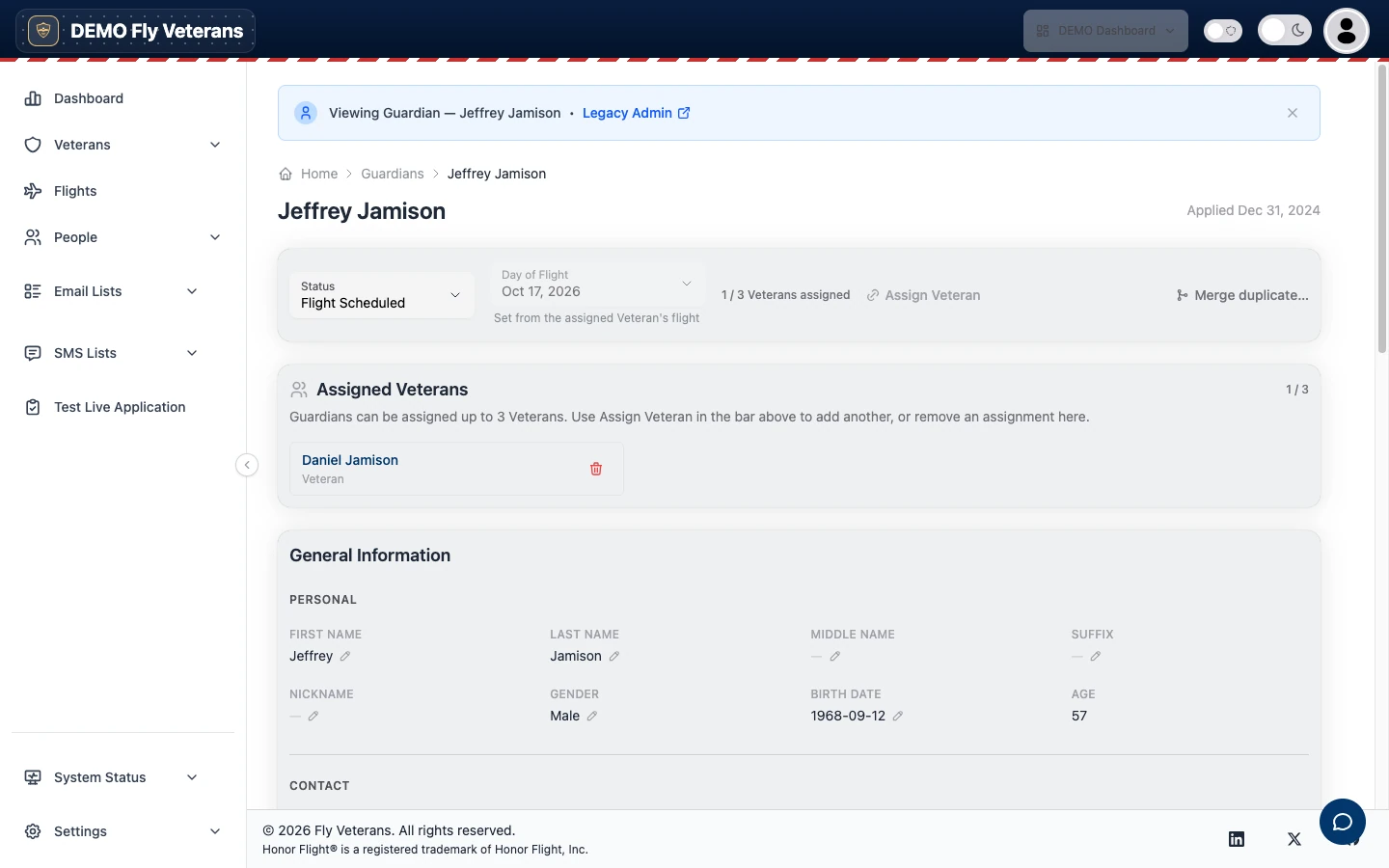
Pairing a Guardian with a Veteran
On the Veteran's record choose Assign next to Guardian, search for the Guardian by name, and confirm. A Guardian can be paired with up to three Veterans on one flight, and the hub measures that capacity per flight, so a Guardian who flew last year is free to fly again.
Family pairings (a son or granddaughter flying with their Veteran) are ordinary pairings; the demo hub has 31 of them.
Merging duplicates
People apply twice, or a paper application is keyed in for someone who also applied online. Choose Merge duplicate… on either record.
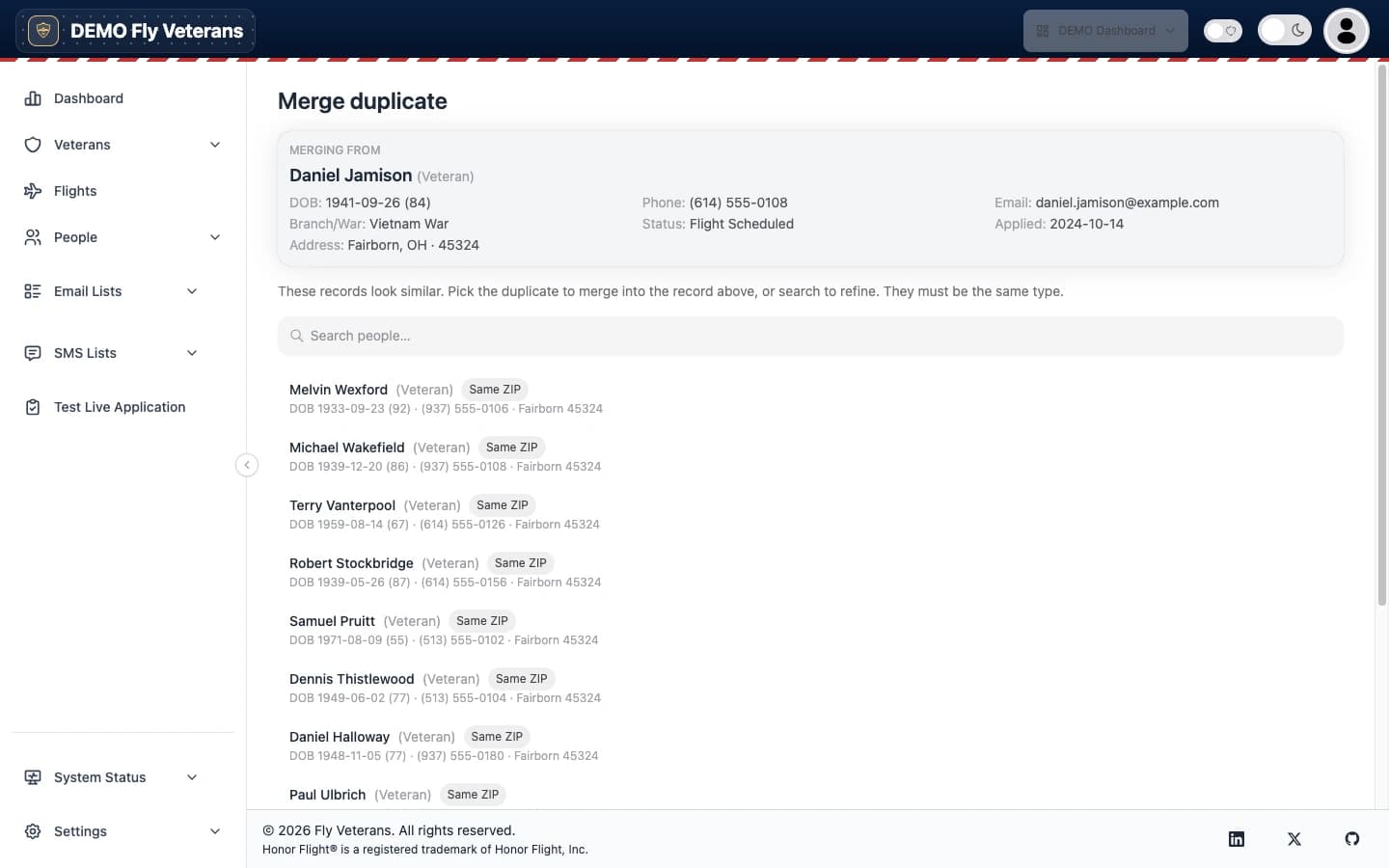
Search for the other record. Match hints — same name, same date of birth, same ZIP, same phone — help you confirm it really is the same person.
For each field that differs, choose which value survives, or Custom value… to type the right one.
Review the child records (service history, contacts, attachments, comments) that will be carried across, then Merge.
The two records become one, and the child records you kept travel with it.
The Line
The Line is the ordered list of Veterans waiting for a flight. It exists so a hub never has to defend "why did he go before me": the order is the national priority ordering, then application date, computed the same way every time.
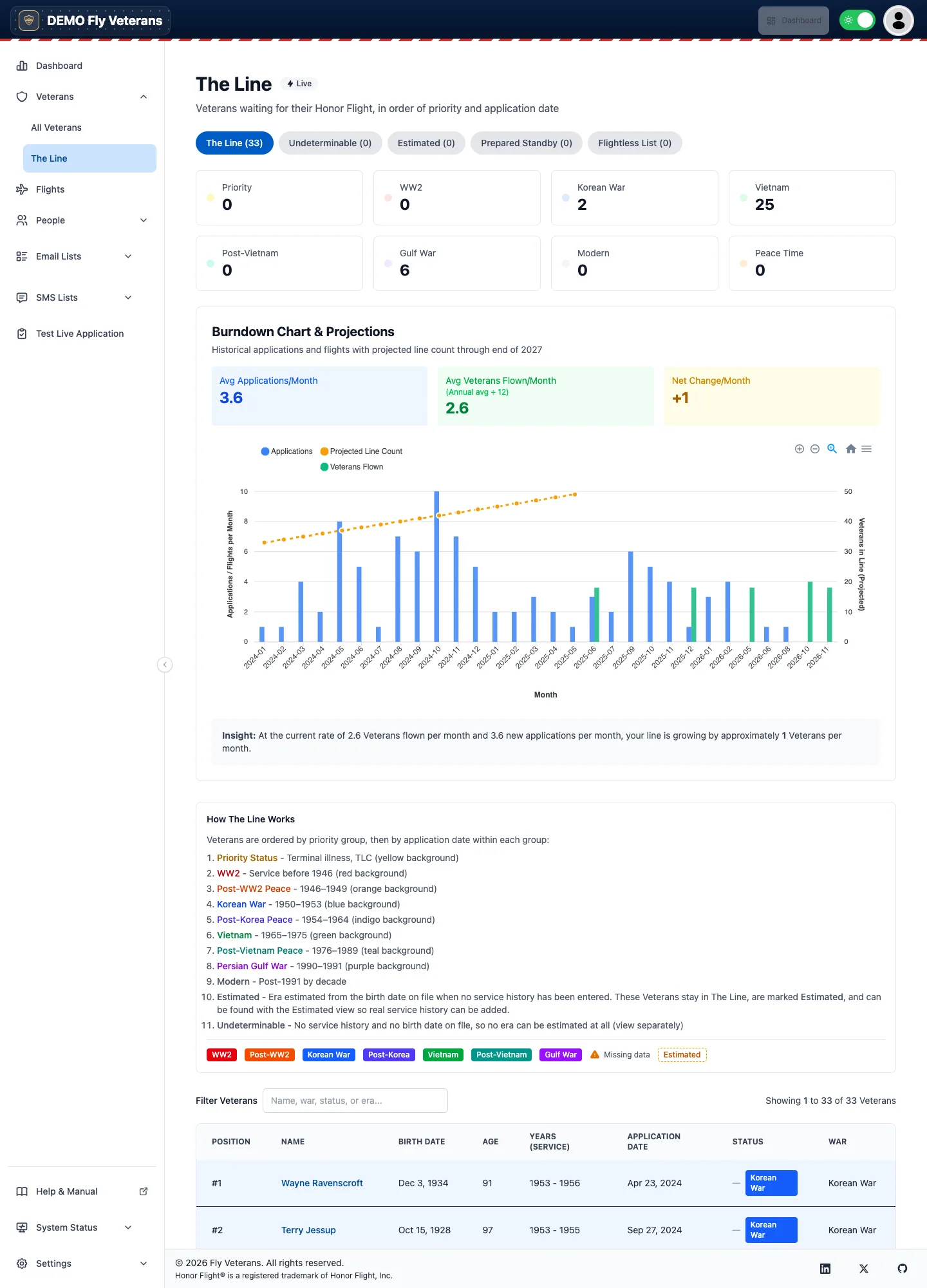
- Tabs. The Line is the ordered wait list. Undeterminable holds Veterans whose service history is too incomplete to place. Estimated holds Veterans whose era was inferred from age rather than recorded dates. Prepared Standby is the ready-to-go standby pool, and Flightless List holds Veterans who will not fly.
- Era counters. Priority, WW2, Korean War, Vietnam, Post-Vietnam, Gulf War, Modern, and Peace Time — the number waiting in each tier.
- Burndown Chart & Projections. Applications per month, Veterans flown per month, and the net change, projected forward so you can see how many flights it takes to reach the end of the line.
- The list itself. Position, name, era (with Estimated or Missing data badges where the hub had to guess), status, and application date. The list is live: it recomputes as records change.
A Veteran with Missing data is not lost — they are waiting for a service date. Open the record, add the service history, and they take their proper place immediately.
Only members with The Line viewer role see this page.
Flights
A Flight (the Honor Flight® network says Mission; the hub uses both) is one trip. Everything on the day hangs off it.
The flights list
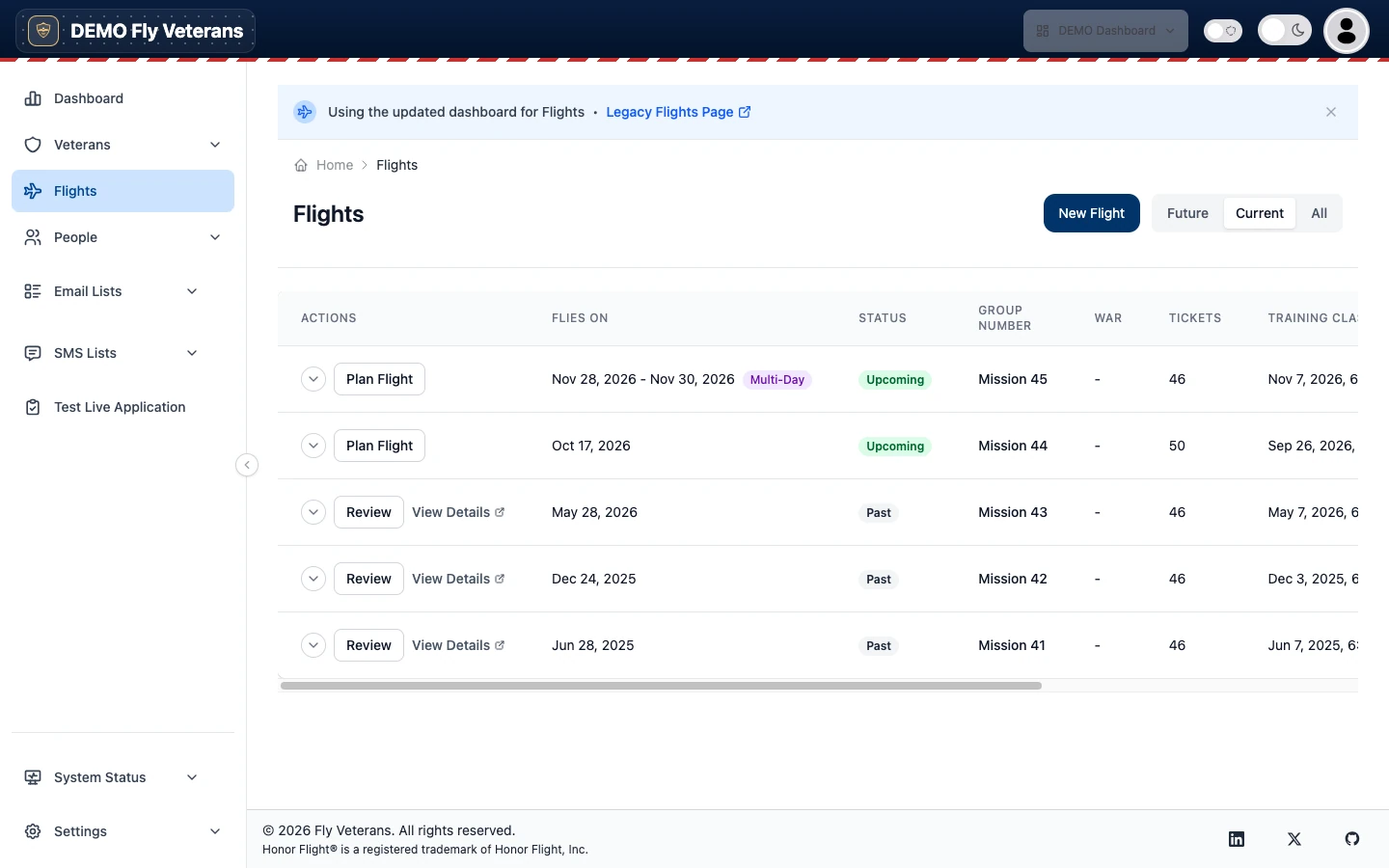
Each row shows the dates (with a Multi-Day badge when the group stays
overnight), status, group number, war focus, tickets, training class, and
airline. The arrow at the left expands the row to delete the flight — you must
type DELETE to confirm.
Creating a flight
Choose New Flight and fill in:
| Field | What it means |
|---|---|
| Flies On | Departure day. |
| Returning Date | The day the group is home. Leave it blank for a same-day trip. A later date makes the flight multi-day and switches on hotel rooms and stays. |
| Gather Time | When Veterans and Guardians must be at the departure point. The itinerary counts forward from this. |
| Training Class | Date and time of the Guardian orientation. |
| Tickets | Seats purchased. |
| Capacity | How many Veterans the flight can carry. |
Choose Create. The flight appears in the list with Plan Flight beside it.
Planning a flight
Plan Flight opens the planning workspace: one page with a tab for each job. The header shows the flight's status, Email Participants (opens the email composer with everyone on this flight already selected), Export (the manifest), and Back to flights.
Overview & Preparedness
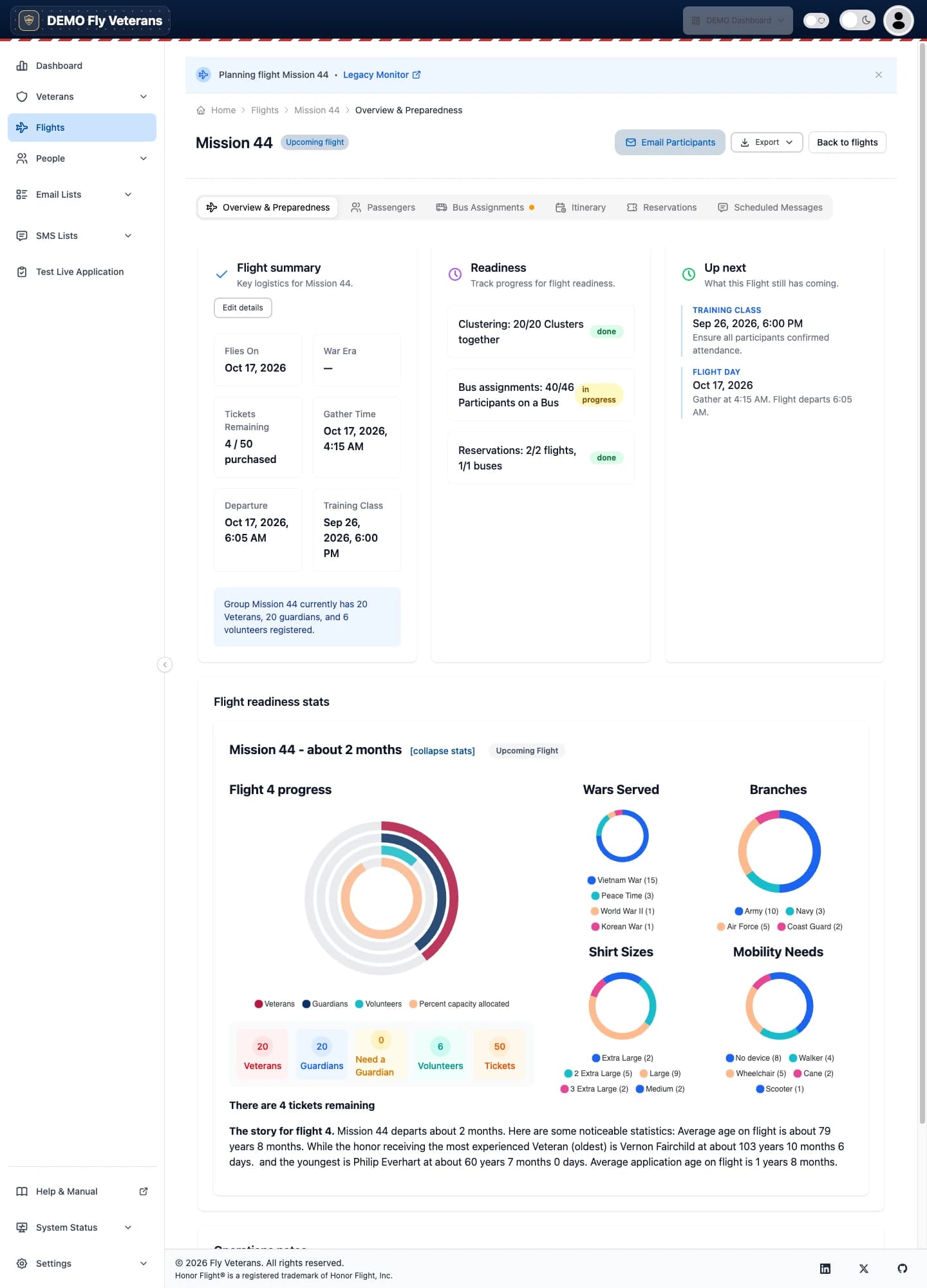
- Flight summary. Flies On, Gather Time, Departure, Training Class, tickets remaining, and the counts of Veterans, Guardians, and Volunteers. Edit details changes any of them.
- Readiness. A checklist the hub computes for you: are Veterans and their Guardians clustered together, how many participants have a bus, and whether every leg and bus is reserved. Each item is done or in progress.
- Up next. The training class and the flight day, with what still needs doing before each.
- Flight readiness stats. Capacity allocated, wars served, branches, shirt sizes, and mobility needs as charts, and a plain-English summary of the group.
- This flight needs another look. Warnings the hub found: a Veteran without a Guardian, a Guardian over capacity, missing sizes, and similar.
Passengers
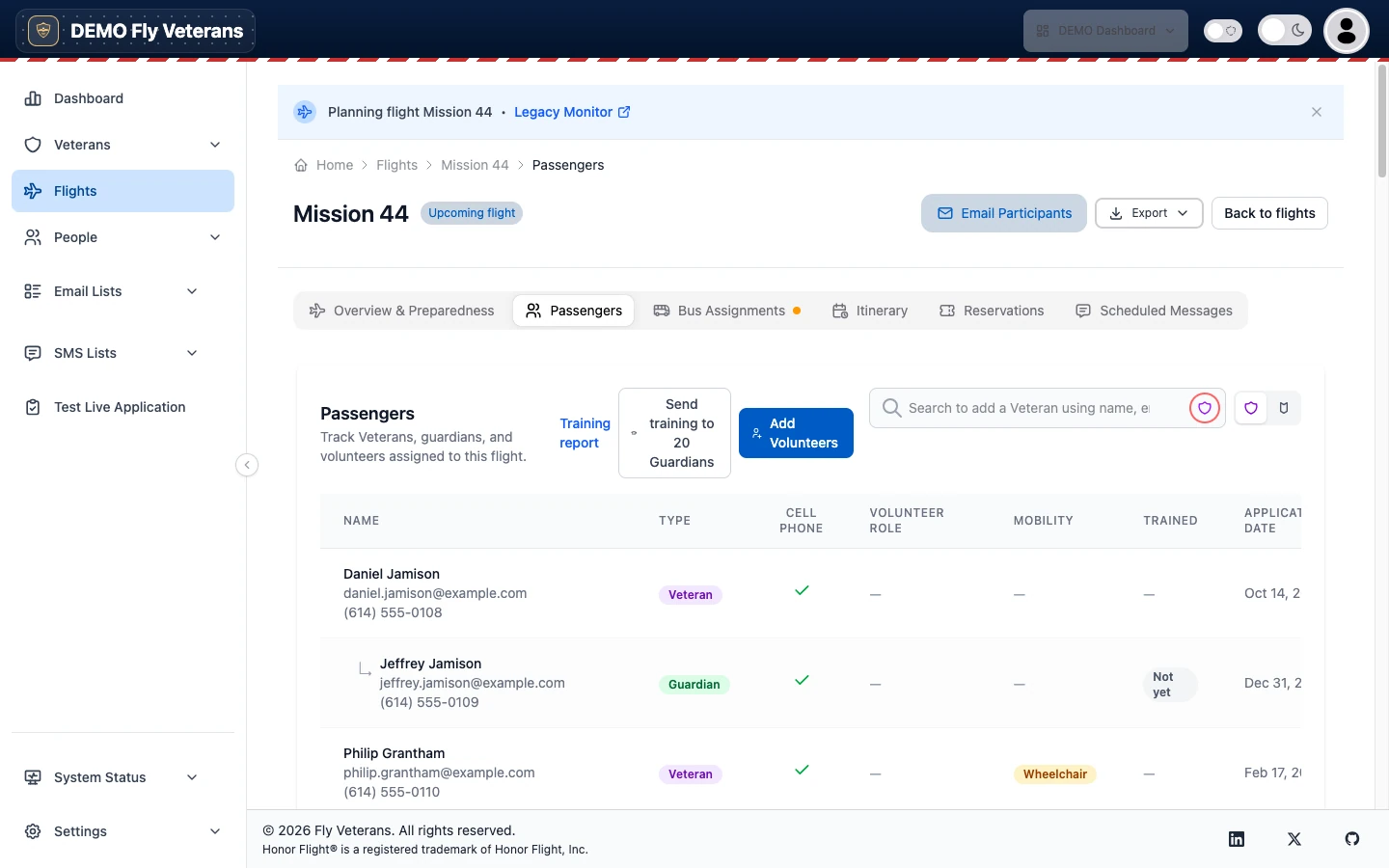
- Search to add a Veteran by name, email, or phone. The Veteran's paired Guardian comes along automatically.
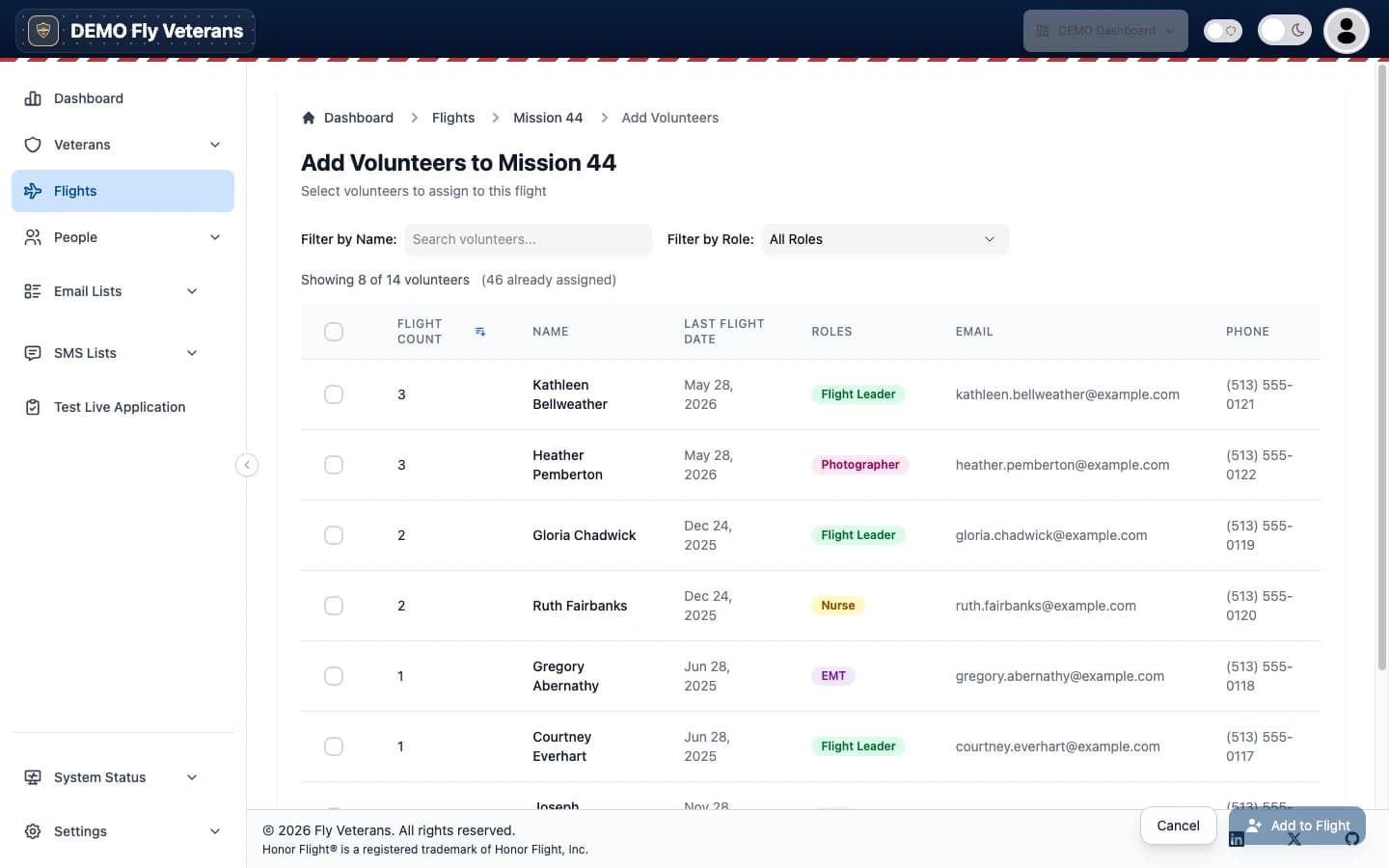
- Add Volunteers opens a picker: search, select individually or Select all volunteers, choose their roles for the day (bus leader, medical, photographer, and the rest of your hub's role list), and add them.
- Training report and Send training to N Guardians invite every Guardian on the flight who has not finished Guardian training.
- Each row shows type, whether a cell phone is on file, volunteer role, mobility device, trained status, and application date. Remove someone from the flight from the row; their record is untouched.
Bus Assignments
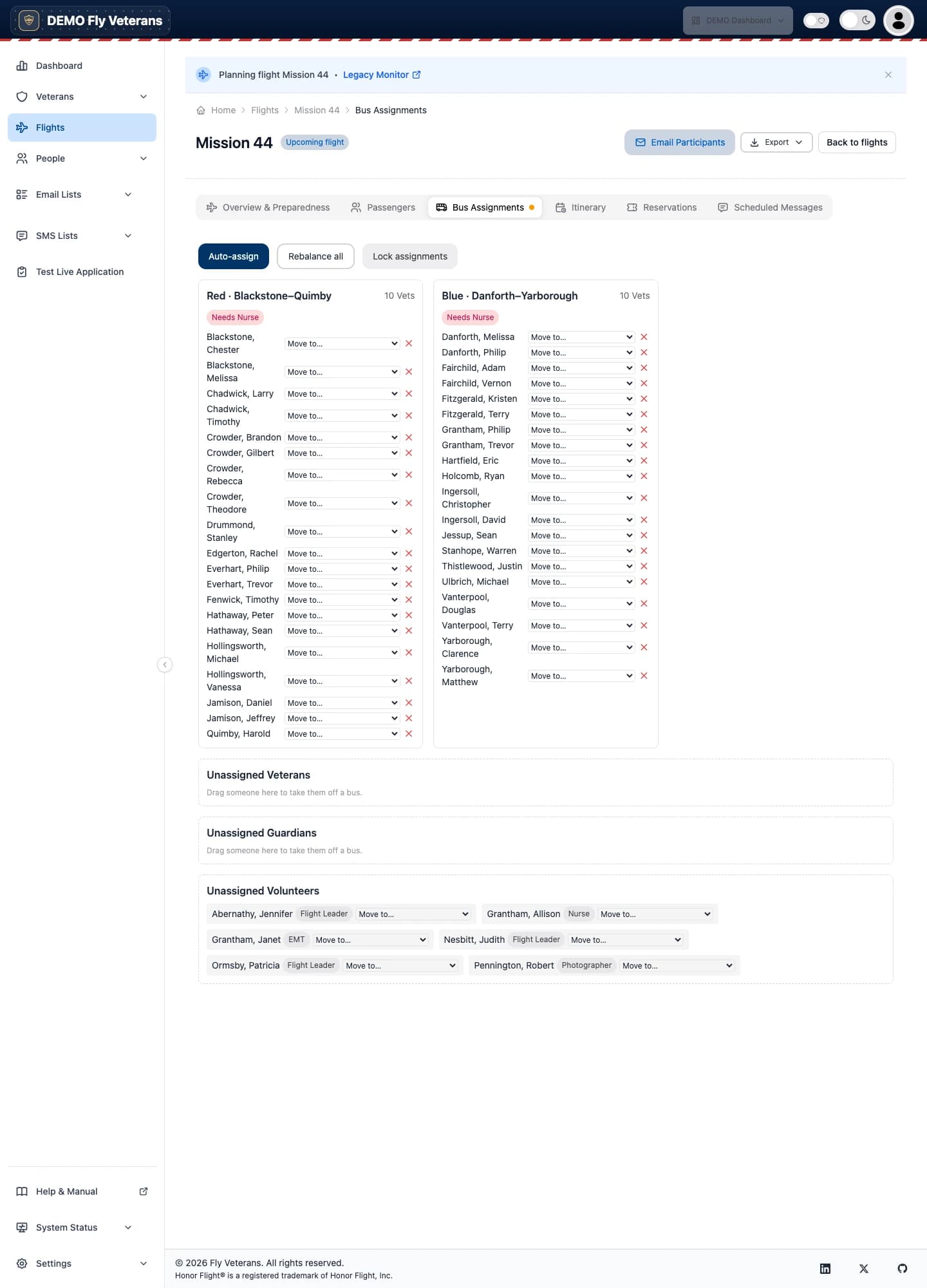
- Auto-assign packs the buses alphabetically and keeps each Veteran with their Guardian. Run it as fill (only place the unassigned) or rebalance (redo everything evenly).
- Drag and drop anyone between lanes, or use the row menu's Move to… and Remove with the keyboard.
- Team-gap badges flag a bus where a needed role — a medical volunteer, a bus leader — is missing.
- Lock assignments once boarding starts so a stray drag cannot change a bus on the day. Unlock to edit again.
Room Assignments (overnight flights)
The Rooms tab appears only when the Returning Date is later than Flies On.
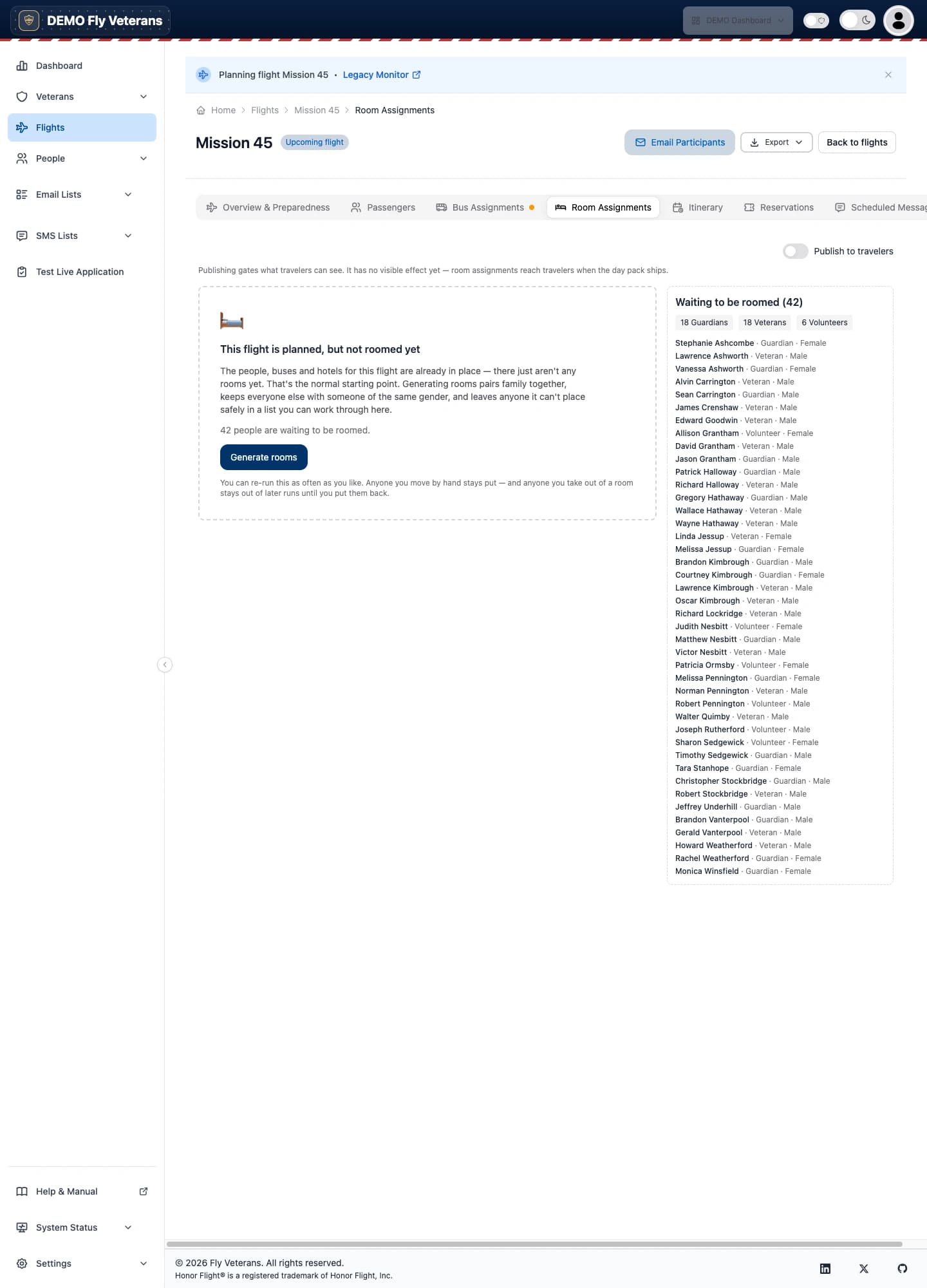
- Generate rooms creates the rooms and fills them, keeping Veterans with their Guardians.
- Add, rename, or delete rooms and set each room's capacity.
- Move occupants between rooms (a full room swaps), pin anyone who must not move, and Put back someone to the unassigned pool.
- The warnings rail lists every room that needs a second look — over capacity, or a Veteran separated from their Guardian — and each room shows its own warnings.
Itinerary
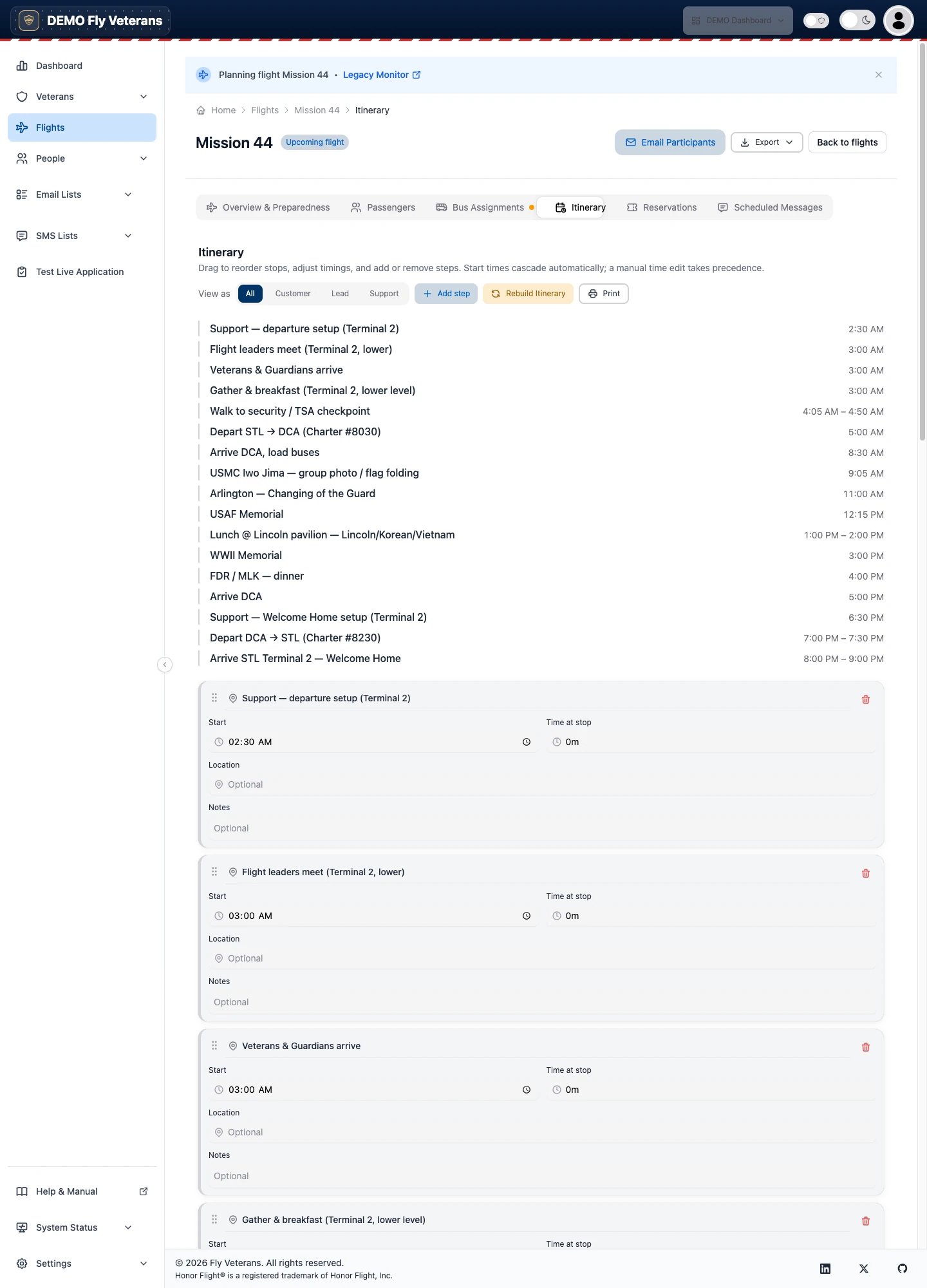
- The itinerary starts from your hub's default template (a single-day and a multi-day template are provided; edit them under Reference Data → Itinerary). Rebuild Itinerary re-applies the template if the plan drifts.
- A multi-day flight has a day switcher — Day 1, Day 2, Day 3.
- Each step card has a start time, duration, location, and notes. Drag to reorder. Add a step from the catalog or write a custom one; remove what you do not need.
- Times cascade: change a duration and every later step moves. Set an explicit time on a step to re-anchor the rest of the day from there (a fixed ceremony time, for example).
- The read-only timeline is the one to print for bus leaders.
Reservations
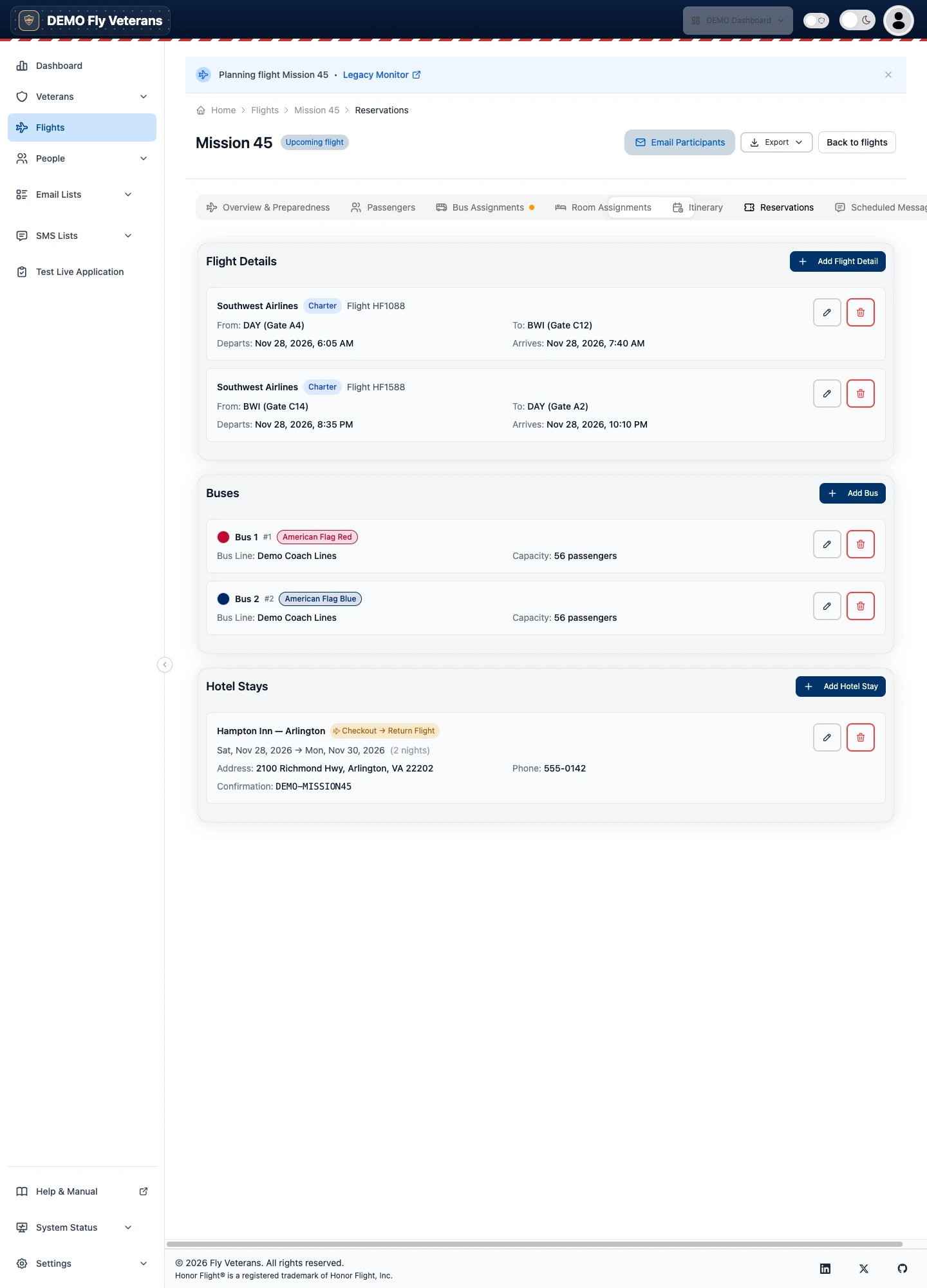
The hub creates the reservation slots for you when the flight is created: two flight legs, the buses, and — for a multi-day flight — a hotel stay per night. Record the airline, flight numbers, times, confirmation numbers, and receipts here. Rooms to book tells you how many rooms the current passenger list needs.
Scheduled Messages
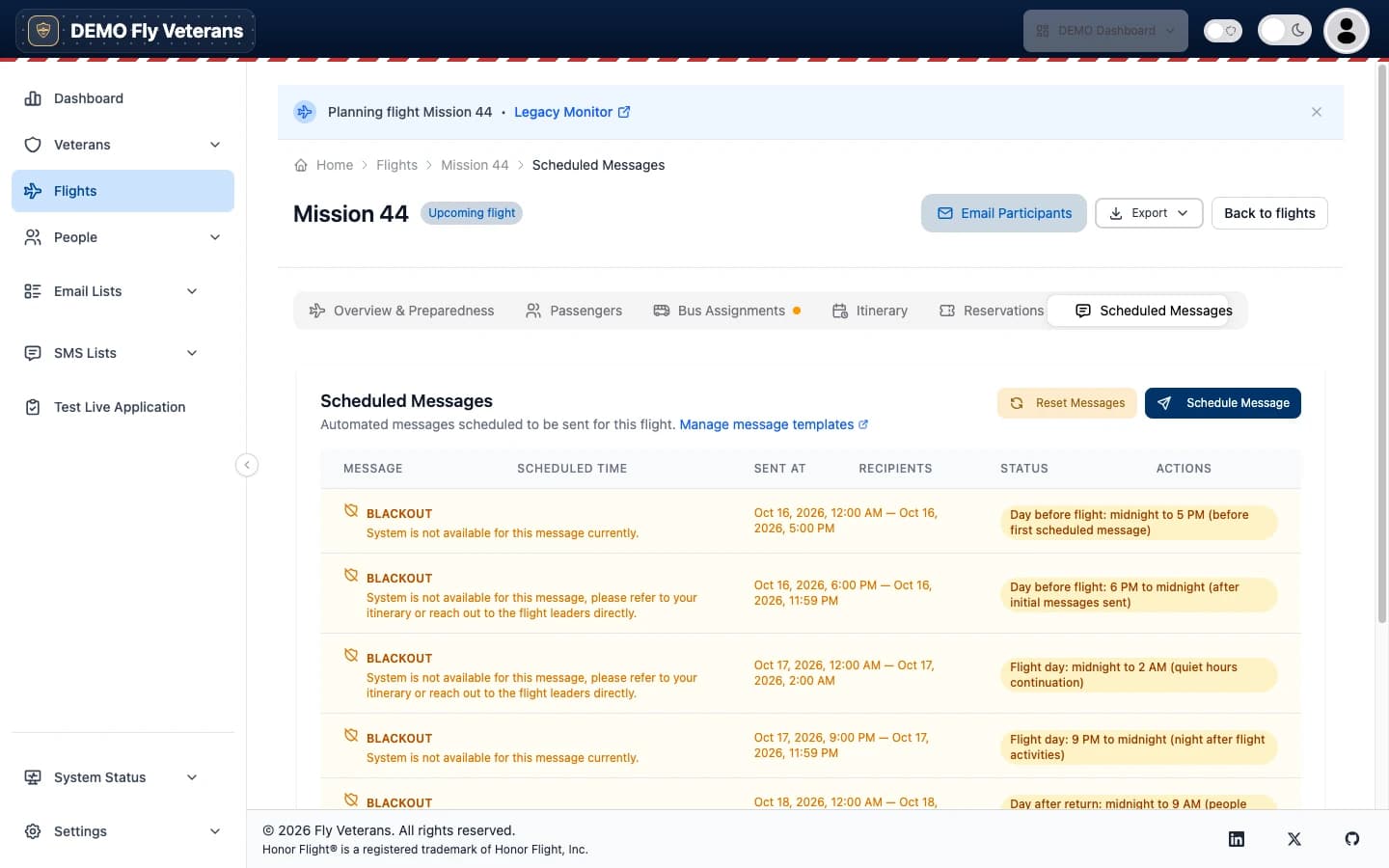
Every flight carries a set of automated text messages generated from your hub's message templates and timed from the flight's dates — the reminders before the day and the updates on it.
- Schedule Message adds one: pick the audience, write the text, set the time. Edit and Cancel work until the message has been sent.
- Send Now sends a scheduled message immediately; send a test delivers it to your own phone first.
- Blackout rows are the quiet windows (the night before, overnight on the day, the night after) in which nothing is sent. They are a safety rail, not a message.
- Reset Messages rebuilds the schedule from the templates after you change the flight's dates or times.
- Publish to travelers releases the schedule so it appears on travelers' devices.
Exporting the manifest
Export in the flight header produces the day-of roster in three shapes:
| Format | Use it for |
|---|---|
| CSV | The full column set, streamed from the server; opens in any spreadsheet. |
| XLSX | The same columns in a native Excel workbook. |
| PDF — Printable Manifest | A curated day-of subset for clipboards: names, buses, mobility, medical flags, and phones. |
Guardians are listed first in every export, matching how bus leaders call the
roll. Files are named flight_manifest_<date>.<ext>.
Guardian training
Guardians watch your hub's training video and answer a short quiz before the flight. Fly Veterans hosts the page, tracks completion, and tells you who still needs to finish.
Setting it up
Under Settings → Guardian Training Setup, enter your Vimeo video, the pass threshold (how much of the video must be watched), and the yes/no questions. Preview plays the video in the page so you can confirm the privacy settings are right, and Put it on your own site gives you an embed snippet.
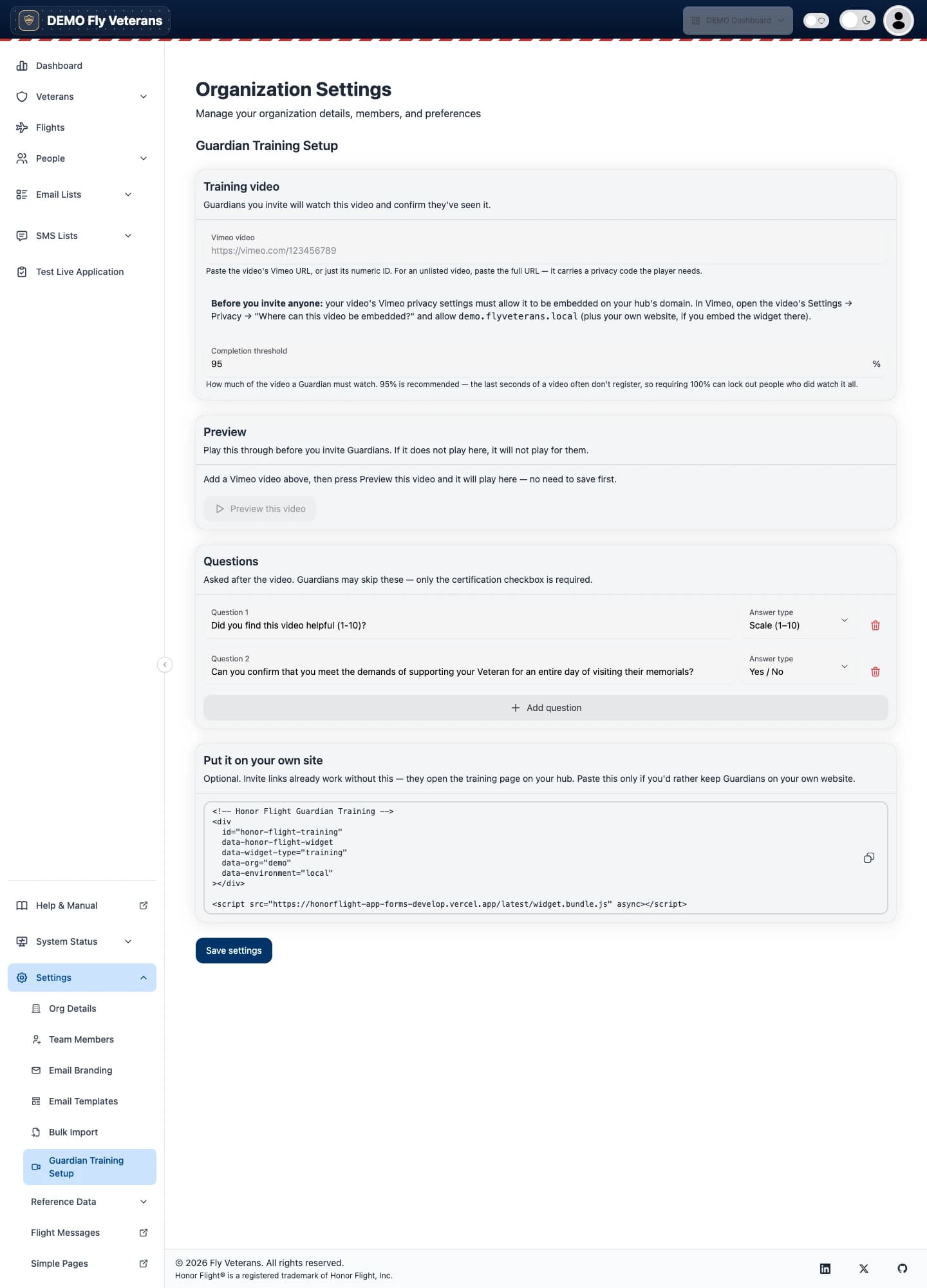
Copy the embed snippet from your own hub, not from this screenshot. The snippet is generated per hub and per environment — it carries your hub's identifier and the script URL for the environment you are looking at, and the one pictured here was captured on a development host. Pasting it into your website would point the widget at the wrong hub and the wrong build.
Inviting Guardians and tracking completion
Open People → Guardian Training, or use Send training to N Guardians on a flight's Passengers tab.
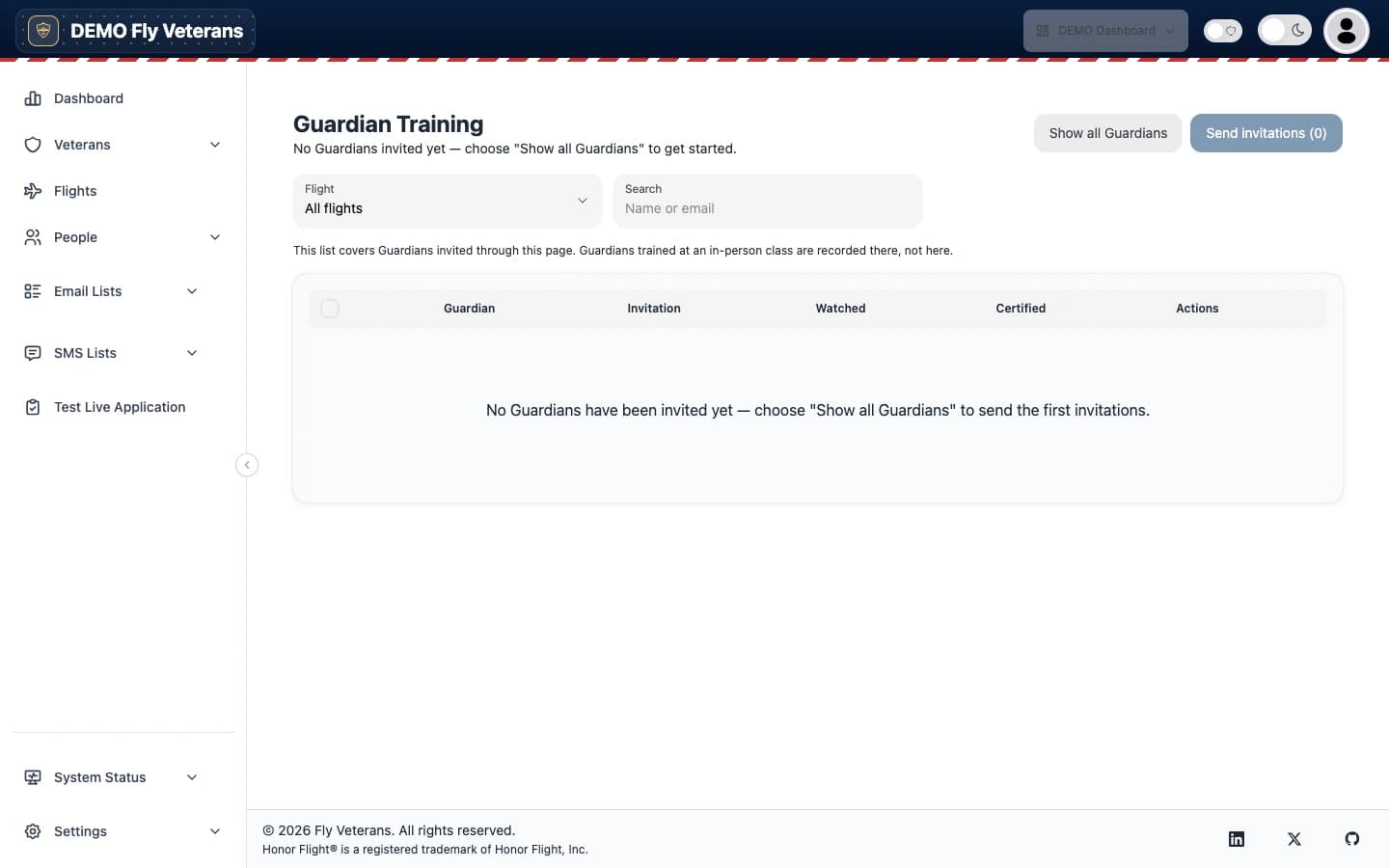
- Filter by flight, search by name, select Guardians, and Send invitations. Each Guardian receives an email with a personal link; resend if it expires, or revoke it.
- The roster shows, per Guardian, the invitation state, how much of the video they have watched (measured as timeline coverage, so skipping ahead does not count), and whether they are Certified.
- Guardians trained in an in-person class are recorded on their person record, not here.
What the Guardian sees
The link opens a focused page on your hub's address — the video, the questions, and a confirmation — with no account to create. It works on a phone.
Fly Veterans sends real, individually addressed email — never a blind blast — and keeps a ledger of every recipient's delivery status.
Email Lists
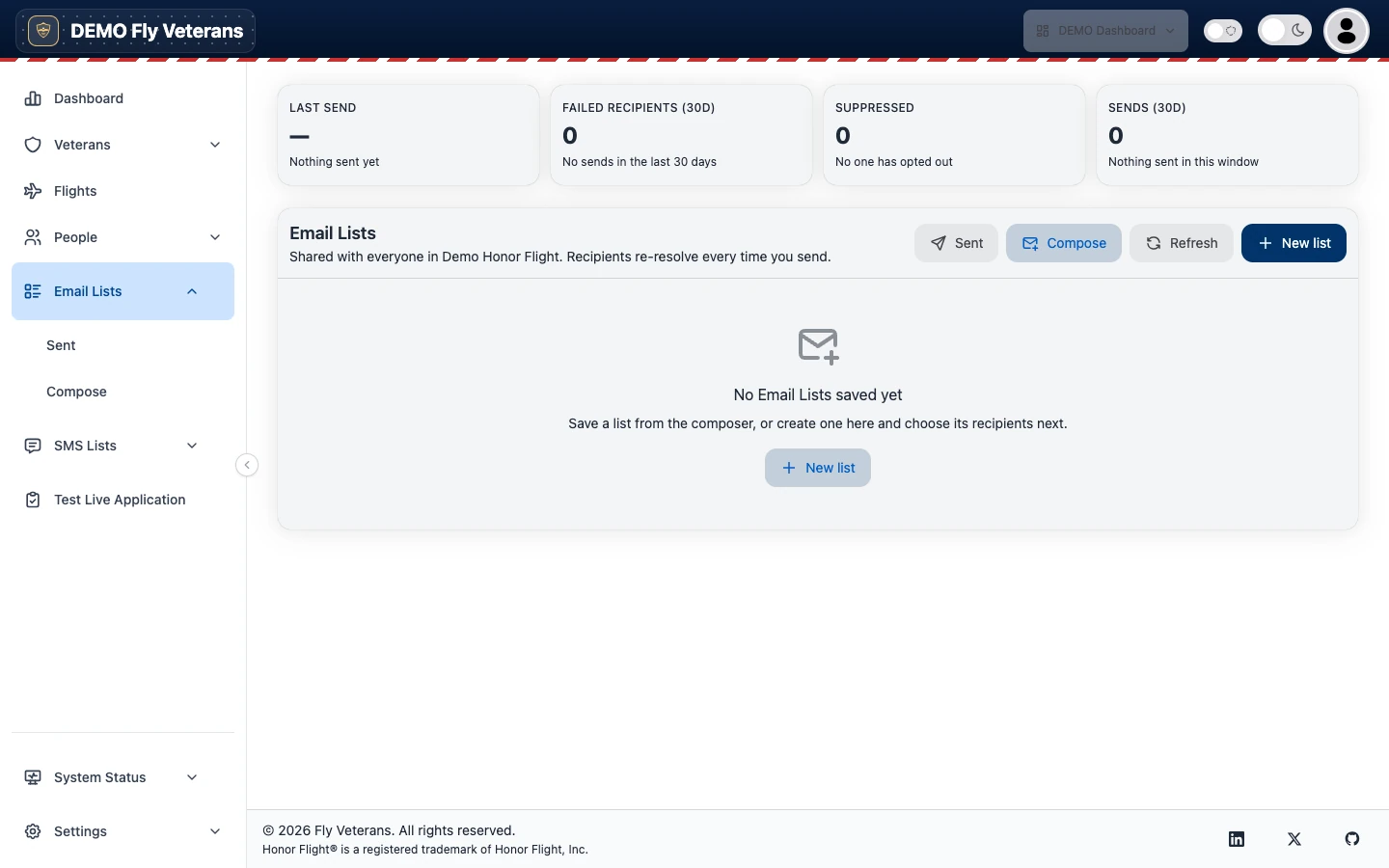
A list stores intent, not a snapshot: "everyone on Mission 44 plus these two people minus that one". When you send, the hub re-resolves it against today's records, so a Veteran added to the flight yesterday is included automatically.
- New list names the list and opens the editor.
- In the editor, choose segments (a flight, or a role such as Veterans, Guardians, or Volunteers on it), then add or remove individuals. Save changes to keep it.
- Sub-lists are named subsets inside a list — "Bus 1", "Medical team" — saved the moment you edit them.
- The resolved people table shows exactly who the list reaches right now; Refresh recomputes it.
Creating, editing, and deleting lists needs the Communications sender role or Admin.
Composing and sending
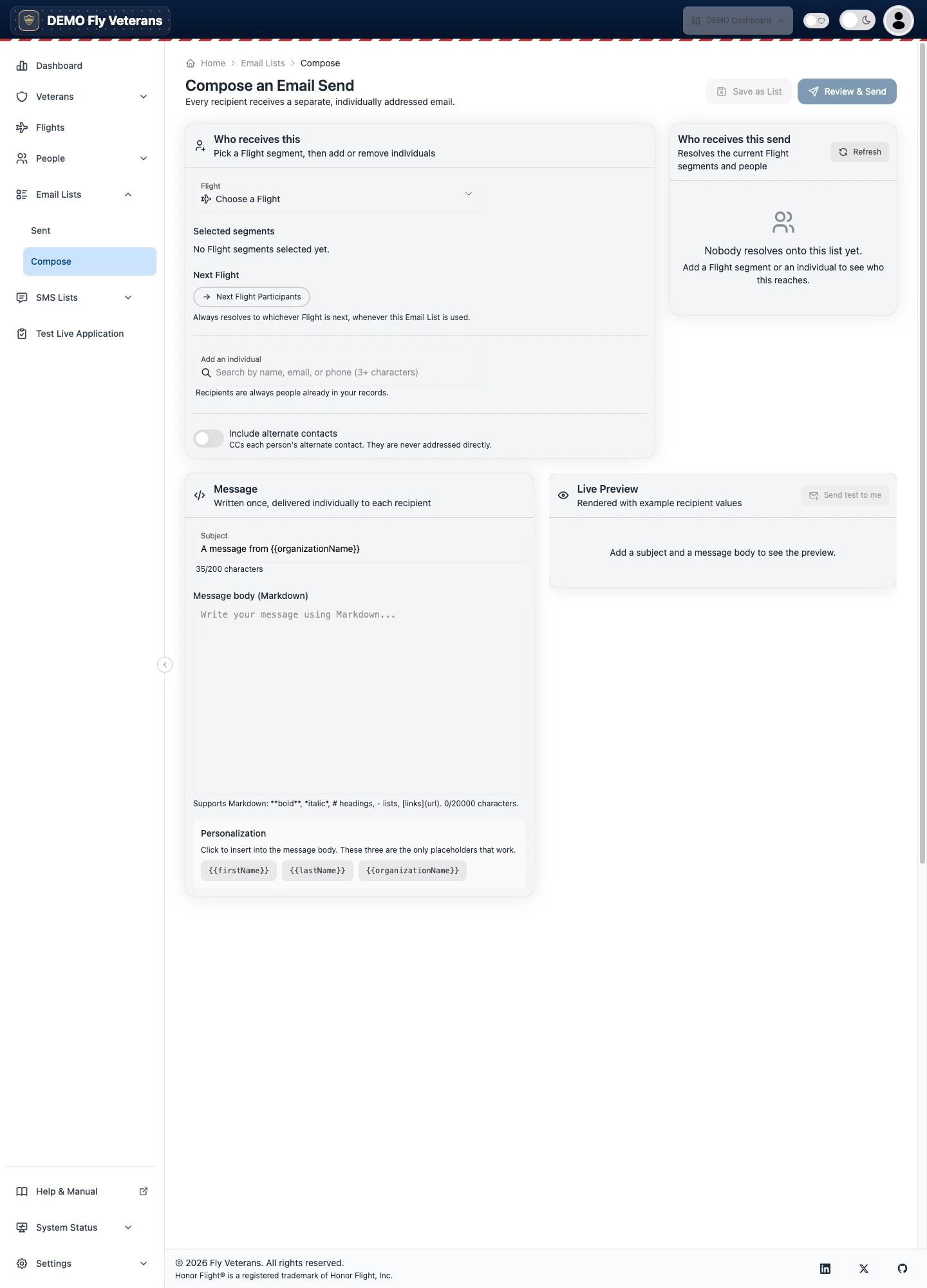
Open Email Lists → Compose, or Email Participants on a flight (the flight is pre-selected), or Send on a saved list.
Write the subject and message. Your hub's branding — logo, header, footer links — is applied automatically.
Review resolves the recipients and shows the exact people and addresses about to receive the message.
Send. Optionally Save as list so the same audience is one click away next time.
Send history and the delivery ledger
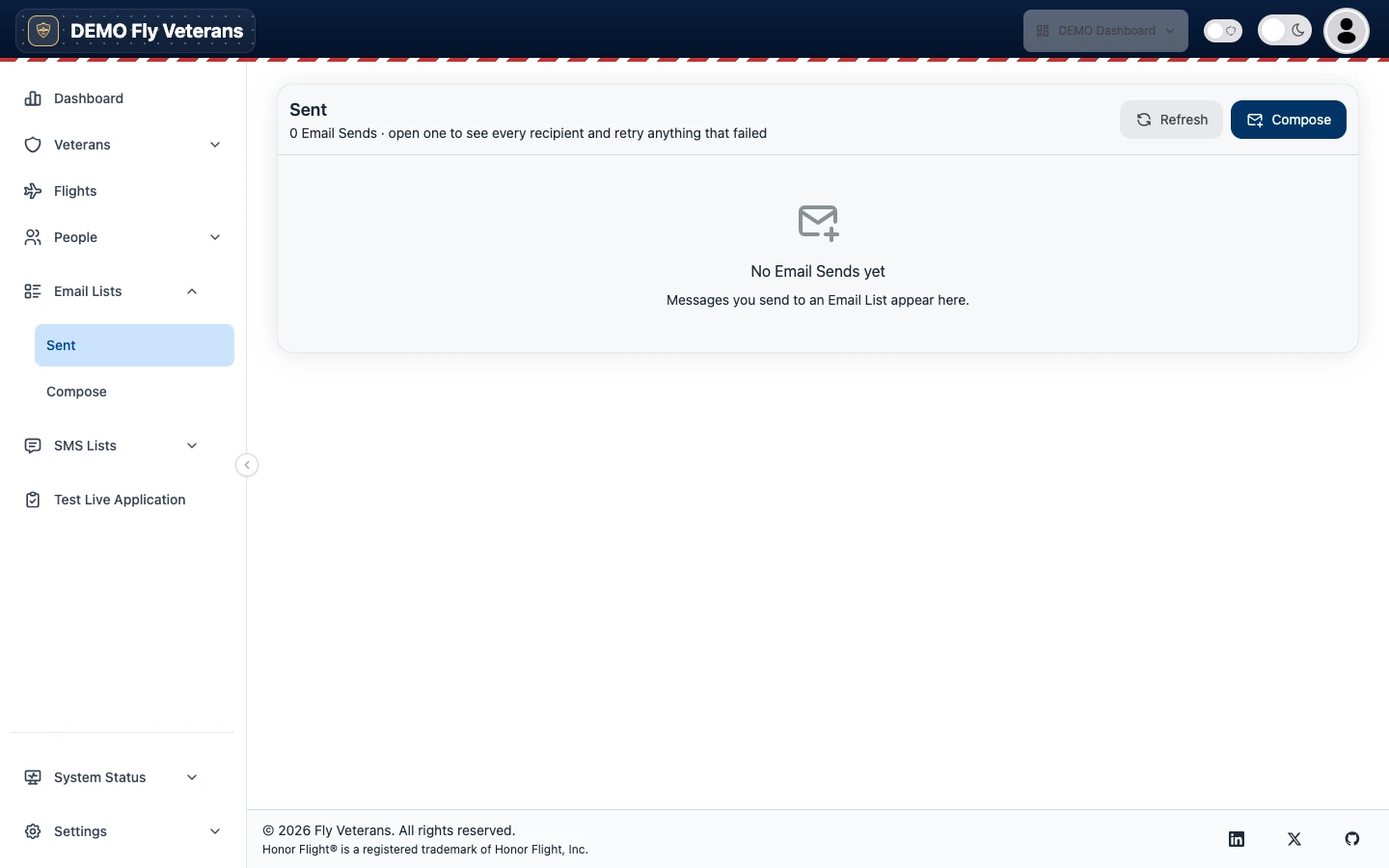
Open a send to see the message as written, roll-up counts, and one row per recipient with its delivery state. Retry failed recipients resends to anyone whose delivery failed; Recover stuck clears a send that never finished (it warns before doing anything).
Branding and templates
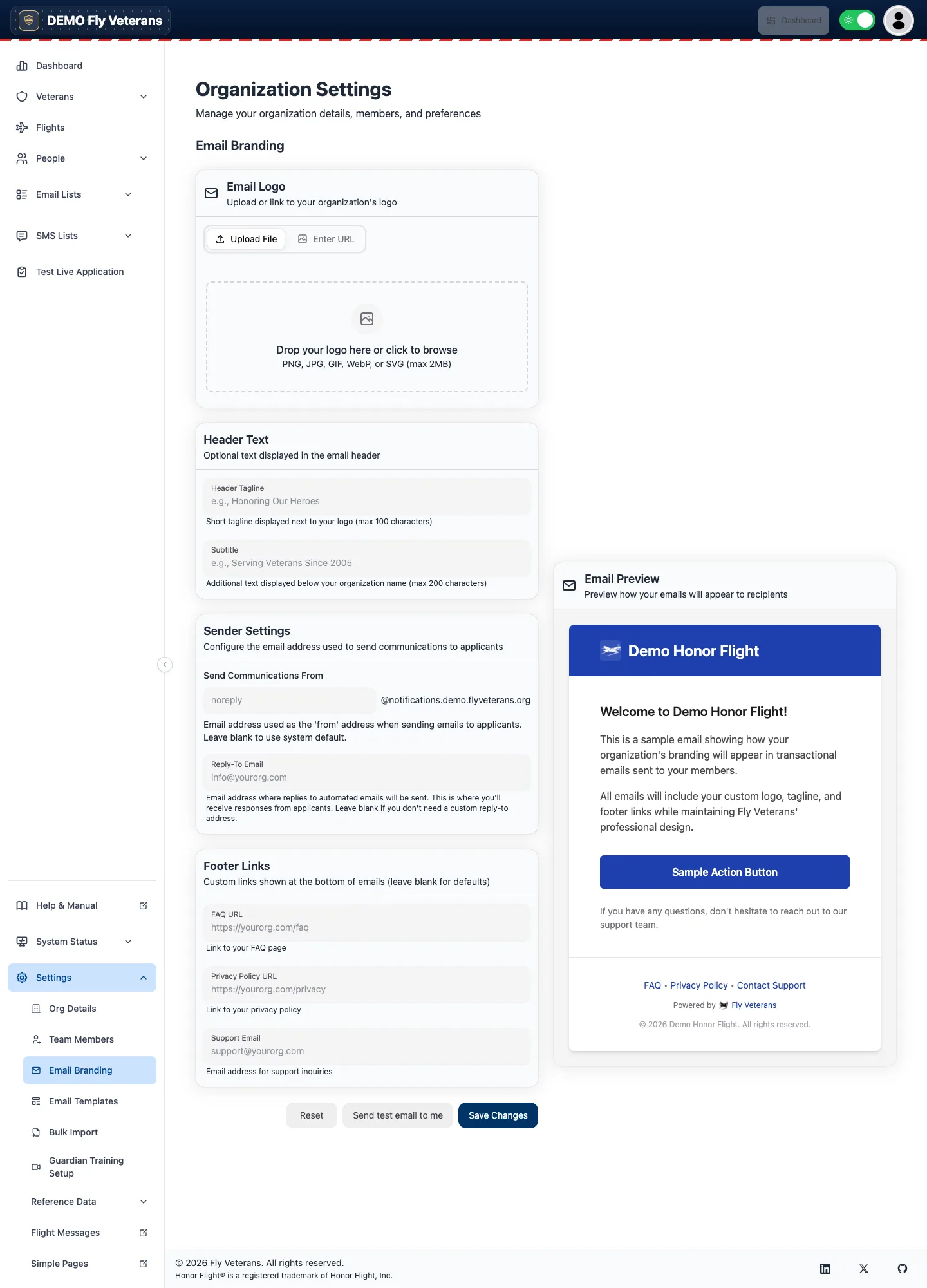
- Settings → Email Branding sets the logo, header text, footer links, and
the sending subdomain (by default
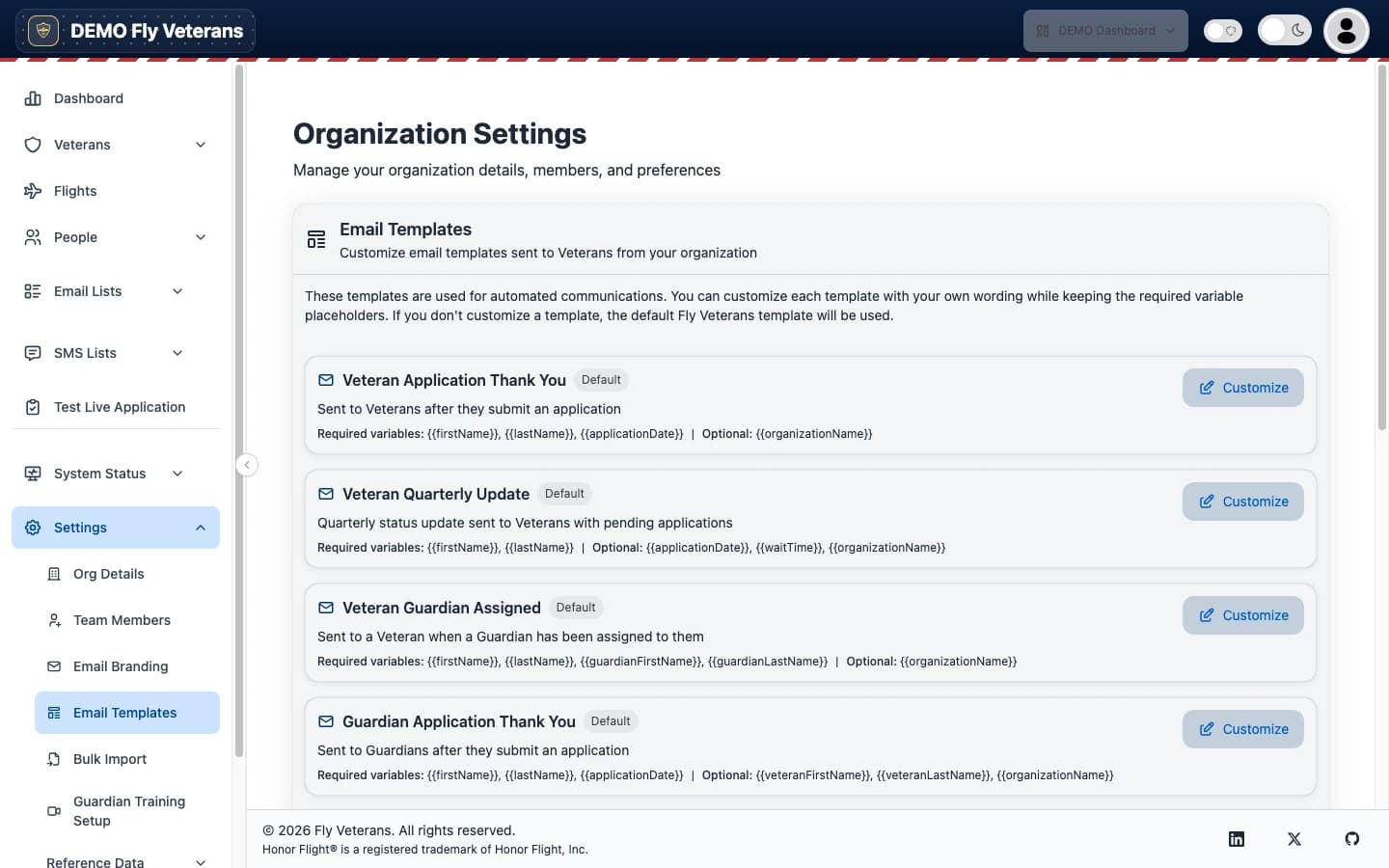
notifications.under your website's domain). - Settings → Email Templates holds the reusable templates for automated hub email.
Unsubscribing
Every message carries an unsubscribe link. Suppressed addresses are shown on the Email Lists page and are skipped on every future send until the person opts back in.
Text messaging (SMS)
Texting from a real, carrier-registered number is what makes the day-of messages possible. Fly Veterans handles the registration paperwork status, the opt-in pages carriers require, the lists, and the sends.
Program & numbers
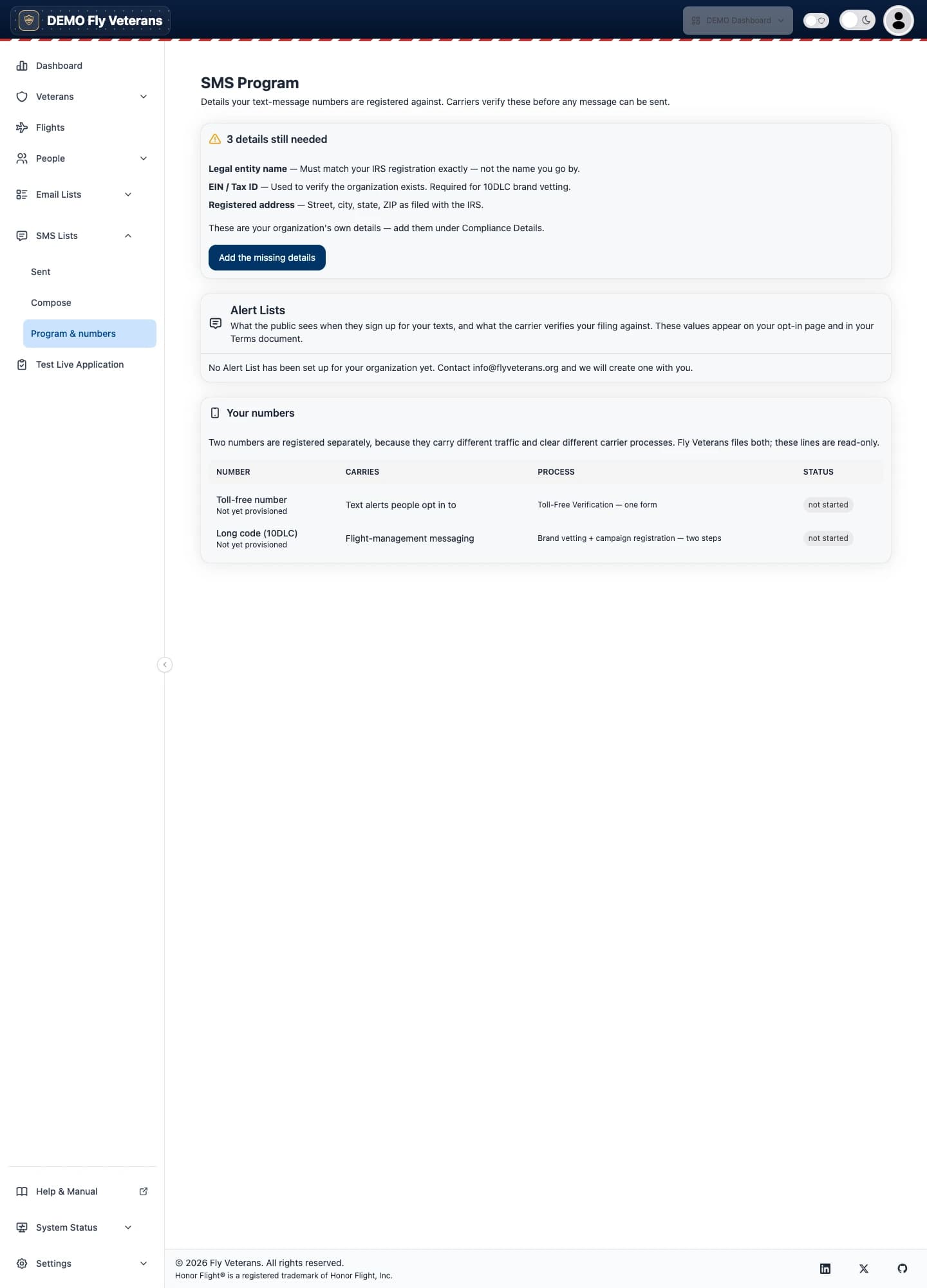
- Carrier filings. Read-only status of the two registrations: the toll-free verification behind Alert Lists and the 10DLC brand and campaign behind flight messaging, with what is still outstanding on each. The details carriers verify — legal name, EIN, registered address, website, authorized representative — are entered once under Settings → Org Details → Compliance Details.
- Alert List card. The declared message frequency, the Join keyword people text to subscribe, and the consent wording shown on the opt-in form.
Opt-in pages your hub hosts
Carriers require a public sign-up form and Terms and Privacy pages. Fly Veterans serves them at your hub's address, and the SMS opt-in & policies widget on the Test Live Application page lets you put the same form on your own site. Anyone who replies STOP to any message is opted out immediately.
SMS Lists
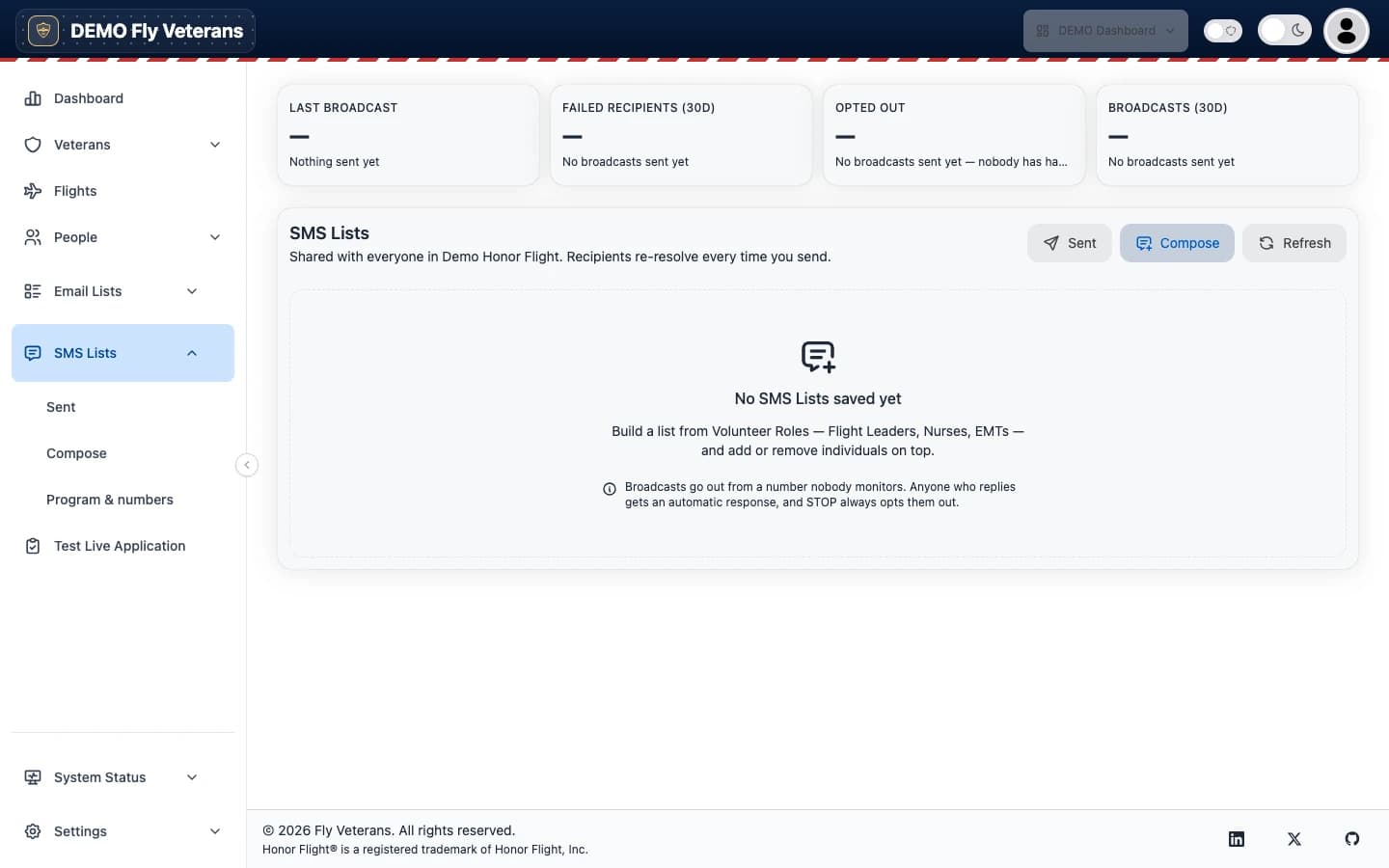
SMS Lists work like Email Lists: segments (Volunteer roles such as Flight Leaders, Nurses, and EMTs) plus individual additions and removals, re-resolved when you send.
Composing a broadcast
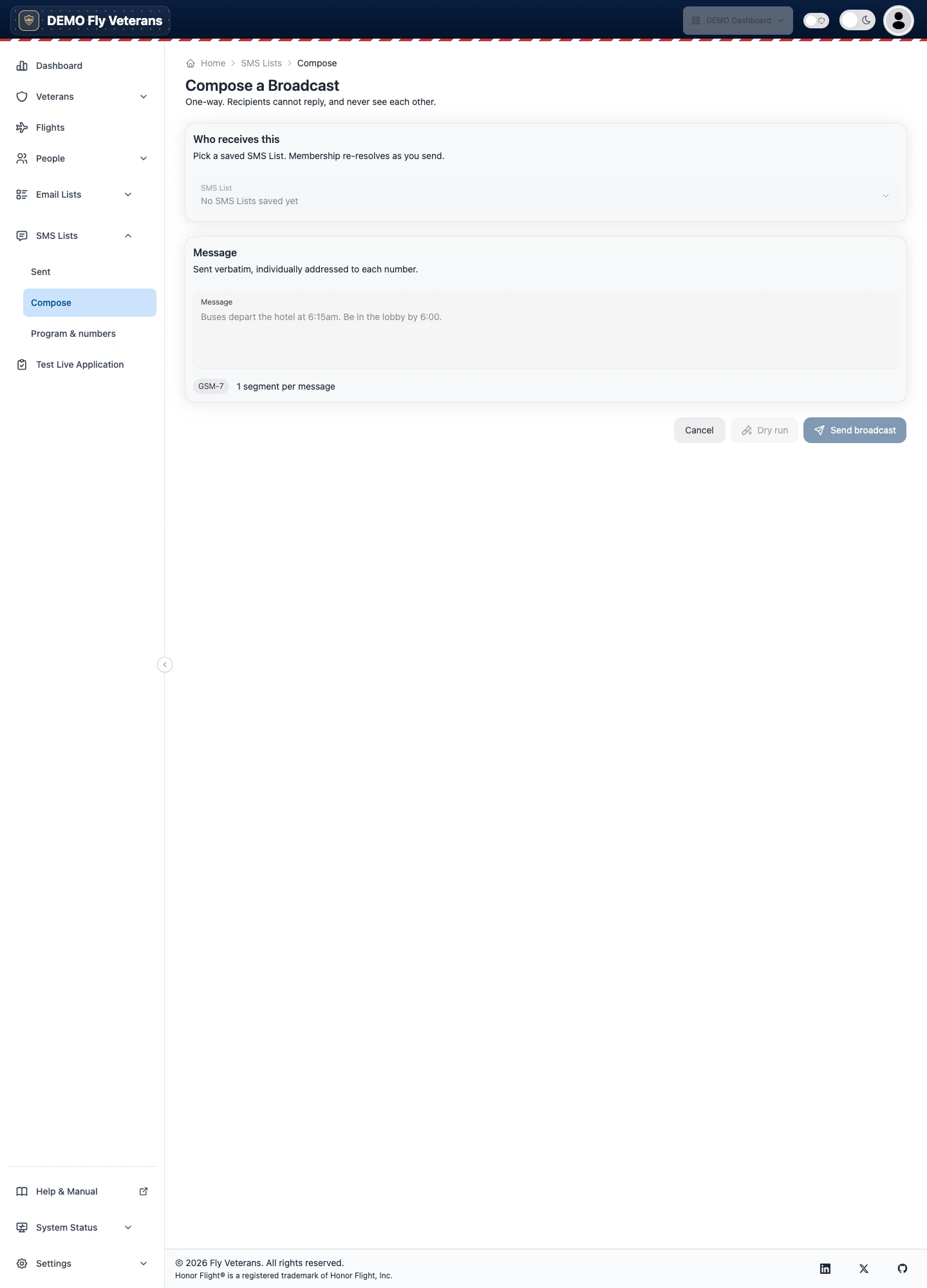
The review step is deliberately explicit:
- People reached versus messages sent: a household that shares one phone is collapsed to one text.
- Unreachable, with the reason — no mobile number, opted out, invalid.
- Segments and the dollar estimate, and a warning if a character in your text (a curly quote, an emoji) forces the more expensive encoding.
Sends need the Communications sender role or Admin.
Broadcast history
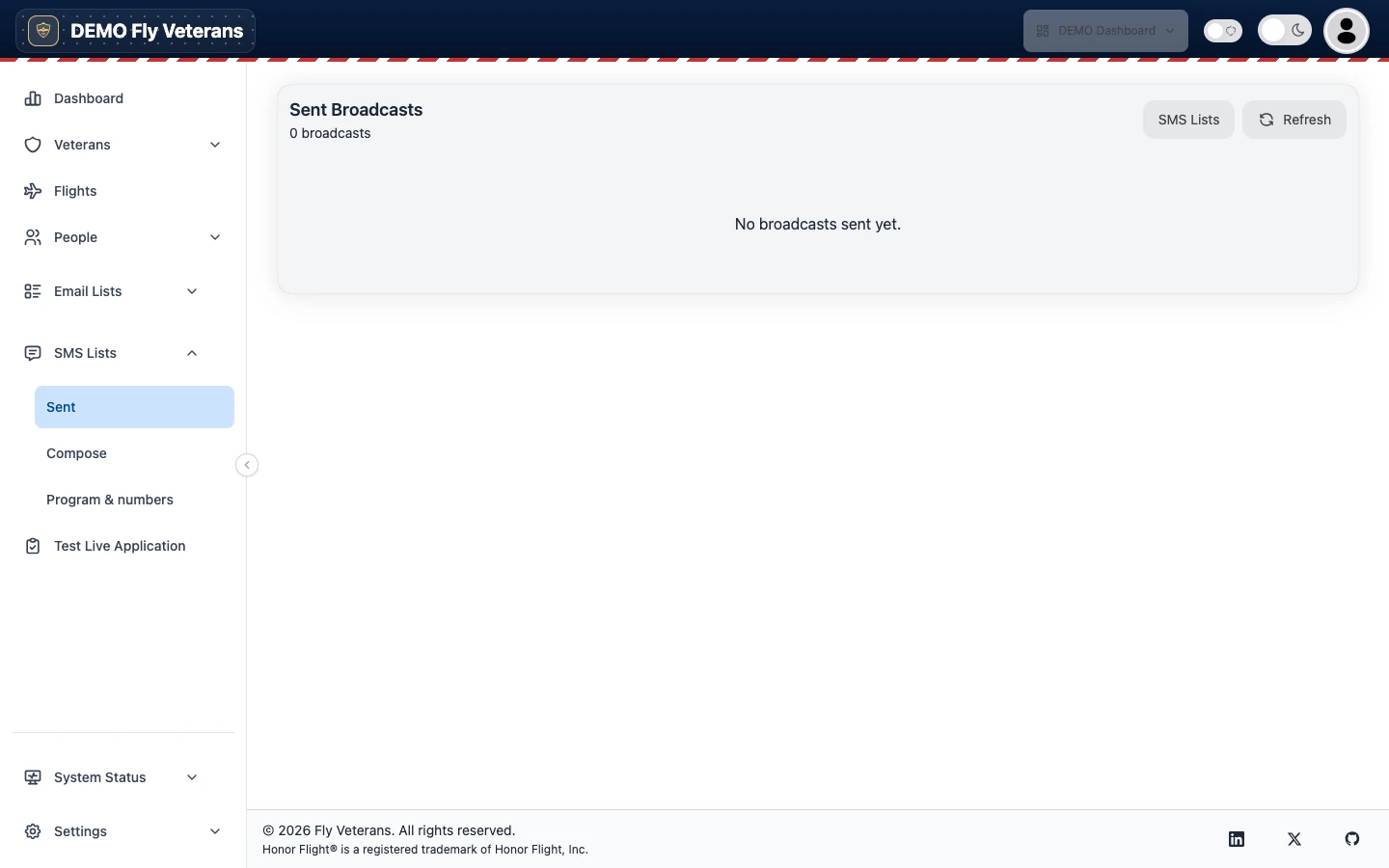
Each broadcast shows its recipients and the cost — the provider's actual figure when available, otherwise the frozen estimate, labelled so you can tell them apart.
System Status and delivery logs
System Status at the bottom of the sidebar is where to look when something seems off.
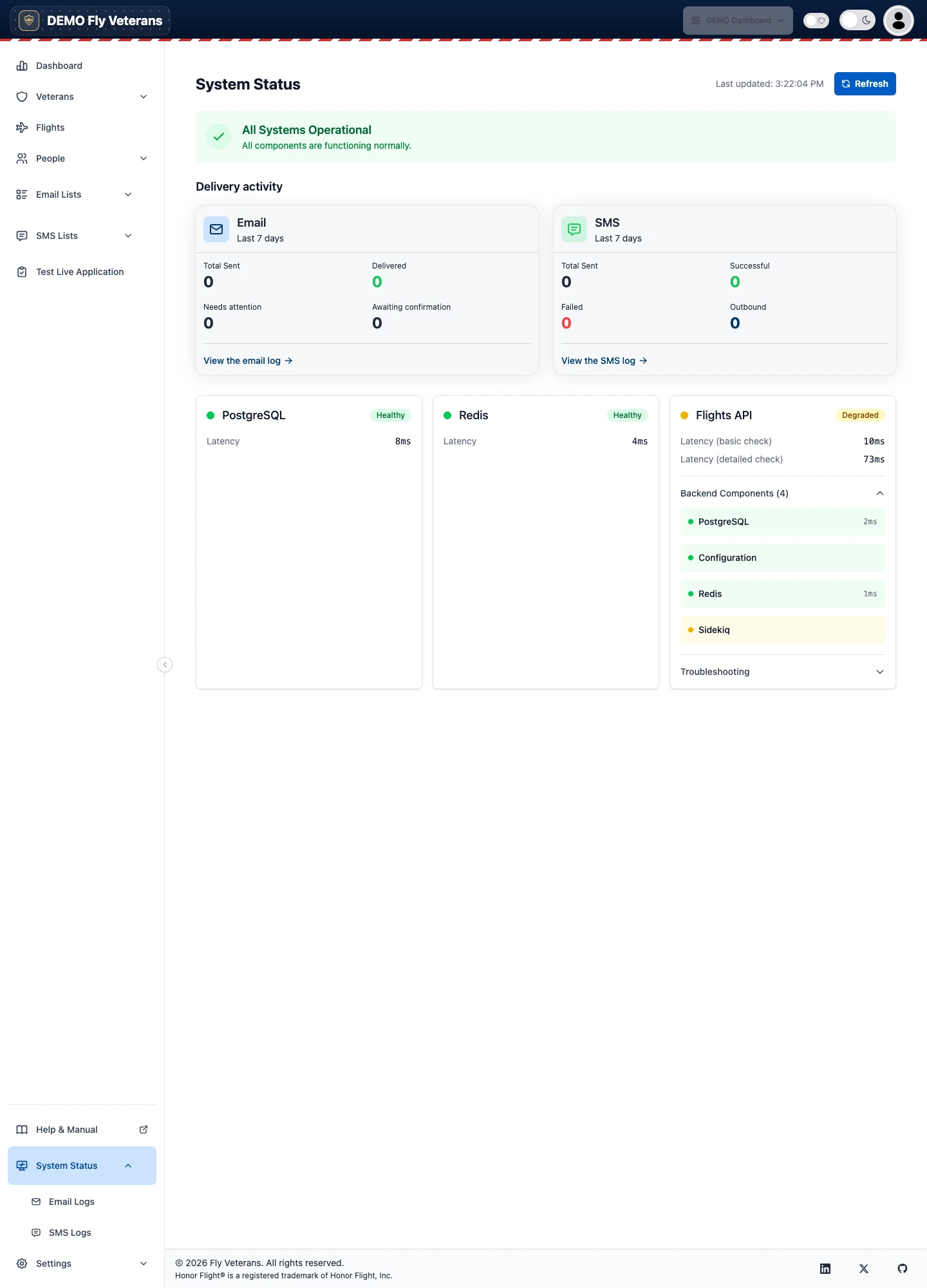
- Health of each component with its latency, the flights-api detailed check, and whether the hub's connection secret is configured and in sync, with plain-language troubleshooting advice.
- Email Logs — every outbound email with its delivery events, "needs attention" first. Open a message for its timeline (sent, delivered, bounced, complained). Fly Veterans does not track link clicks, by design.
- SMS Logs — the same for texts, with a details drawer.
- Communications Overview (reachable from the logs) — seven days of email and SMS activity side by side.
Settings
Everything under Settings is per hub and visible to hub administrators.
Org Details
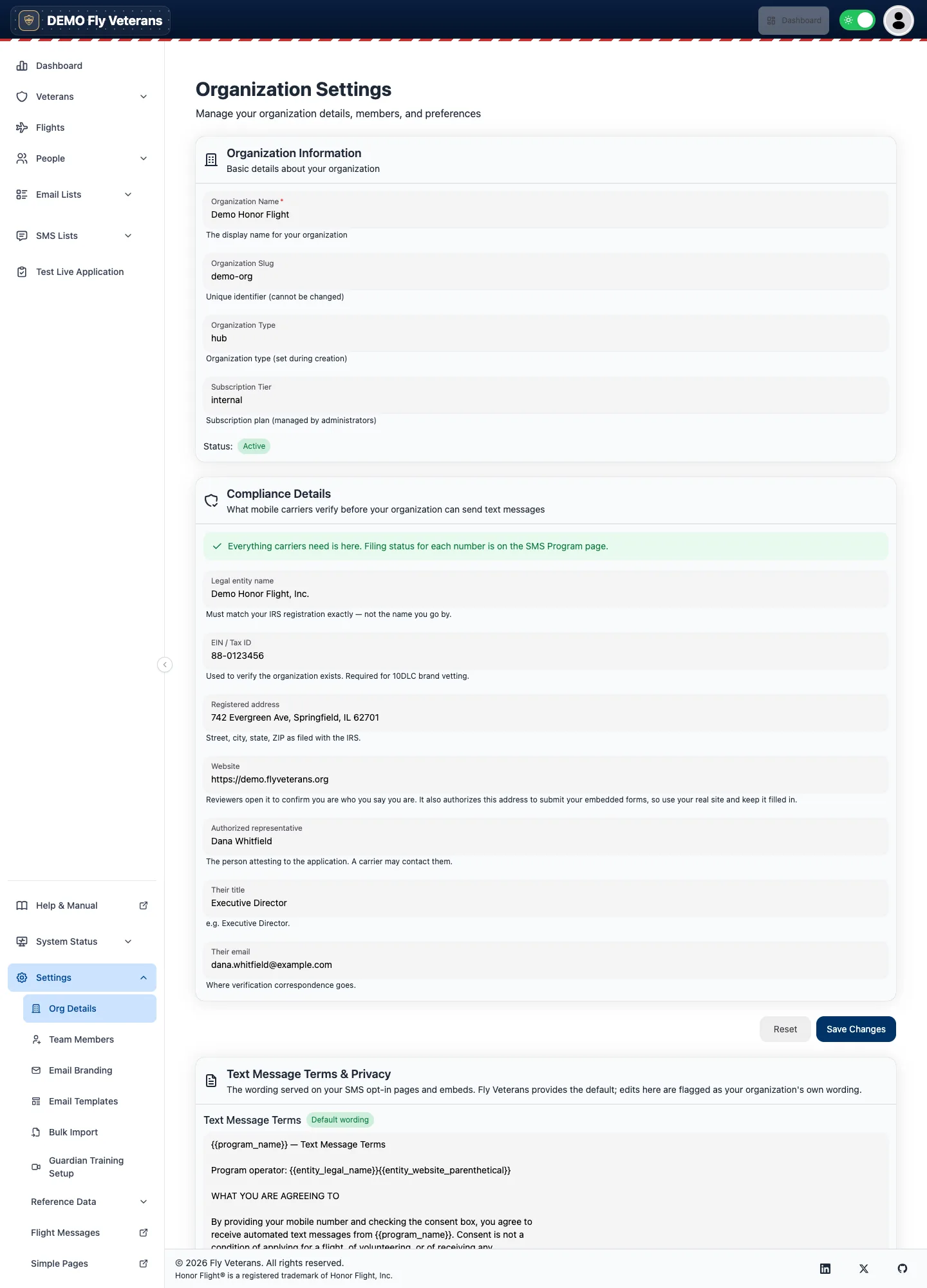
- Organization Information. Display name, slug and type (fixed at creation), subscription tier, and status.
- Compliance Details. Legal name, EIN, registered address, website, and authorized representative — what mobile carriers verify before your hub can text.
- Text Message Terms & Privacy. The wording published on your hub's SMS opt-in pages; it saves separately.
Team Members
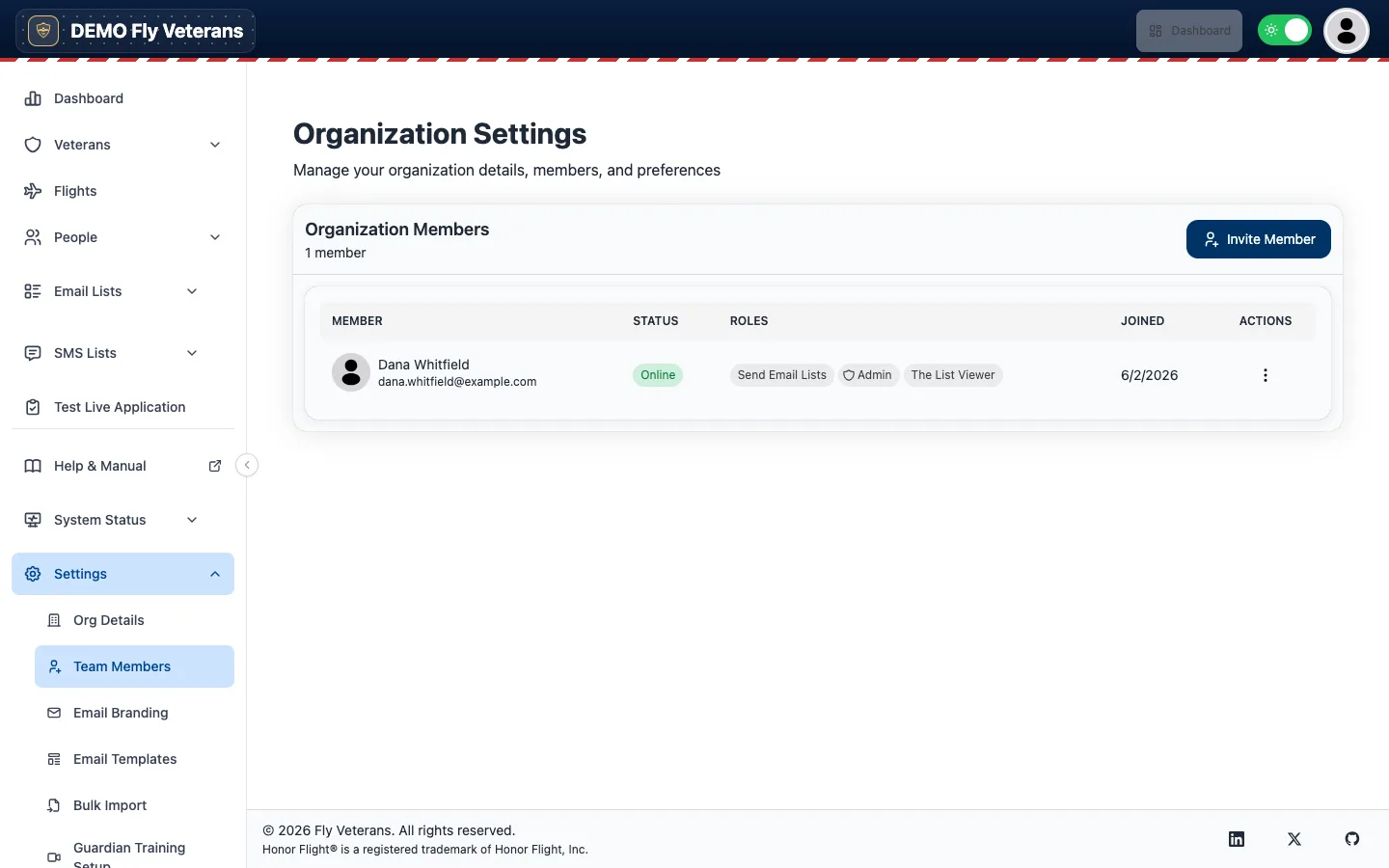
Invite a member by email, assign roles, and remove people who have moved on. Role changes take effect within a minute.
Email Branding and Email Templates
Bulk Import
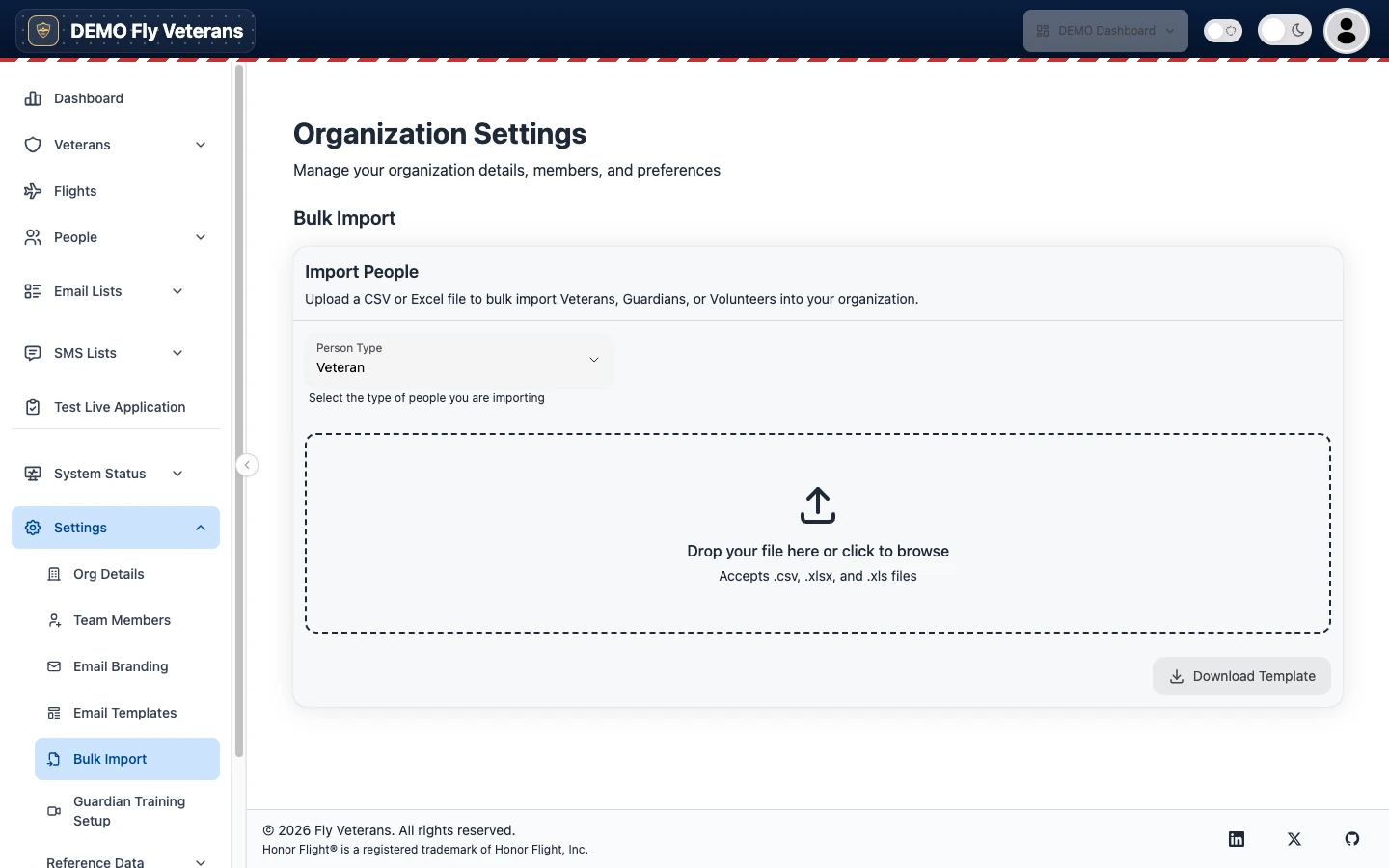
A multi-step wizard: upload a CSV of people, check how its columns were read, and import. Use it once when you move to Fly Veterans, or any time a partner hands you a spreadsheet.
Reference Data
The lists behind every dropdown — airlines, awards, branches, contact categories and relationships, flight responsibilities, itinerary templates and step types, medical condition names and types, medication routes, mobility devices, name suffixes, person statuses, rank types and ranks, shirt sizes, volunteer roles, and wars — are yours to edit. They open in a separate tab in the hub's administration area.
Data, privacy and safety
- Each hub's data is stored separately from every other hub's.
- Every page of Fly Veterans, and every email it sends, carries the required attribution: Honor Flight® is a registered trademark of Honor Flight, Inc.
- Sign-in is passwordless; sessions expire; sign-ins are logged.
- Exports escape spreadsheet formulas; the application form rejects bot submissions; text messages honor STOP the moment it is received.
- The full policies are at Privacy, Terms, SLA, DPA, and Sub-processors.
Getting help
- In the hub: Help & Manual at the bottom of the sidebar opens this page.
- Terms: the Glossary.
- Questions: info@flyveterans.org or the FAQ.
- New to Fly Veterans? Request a demo and we will walk your hub through this manual with your own flight.
Honor Flight® is a registered trademark of Honor Flight, Inc.